

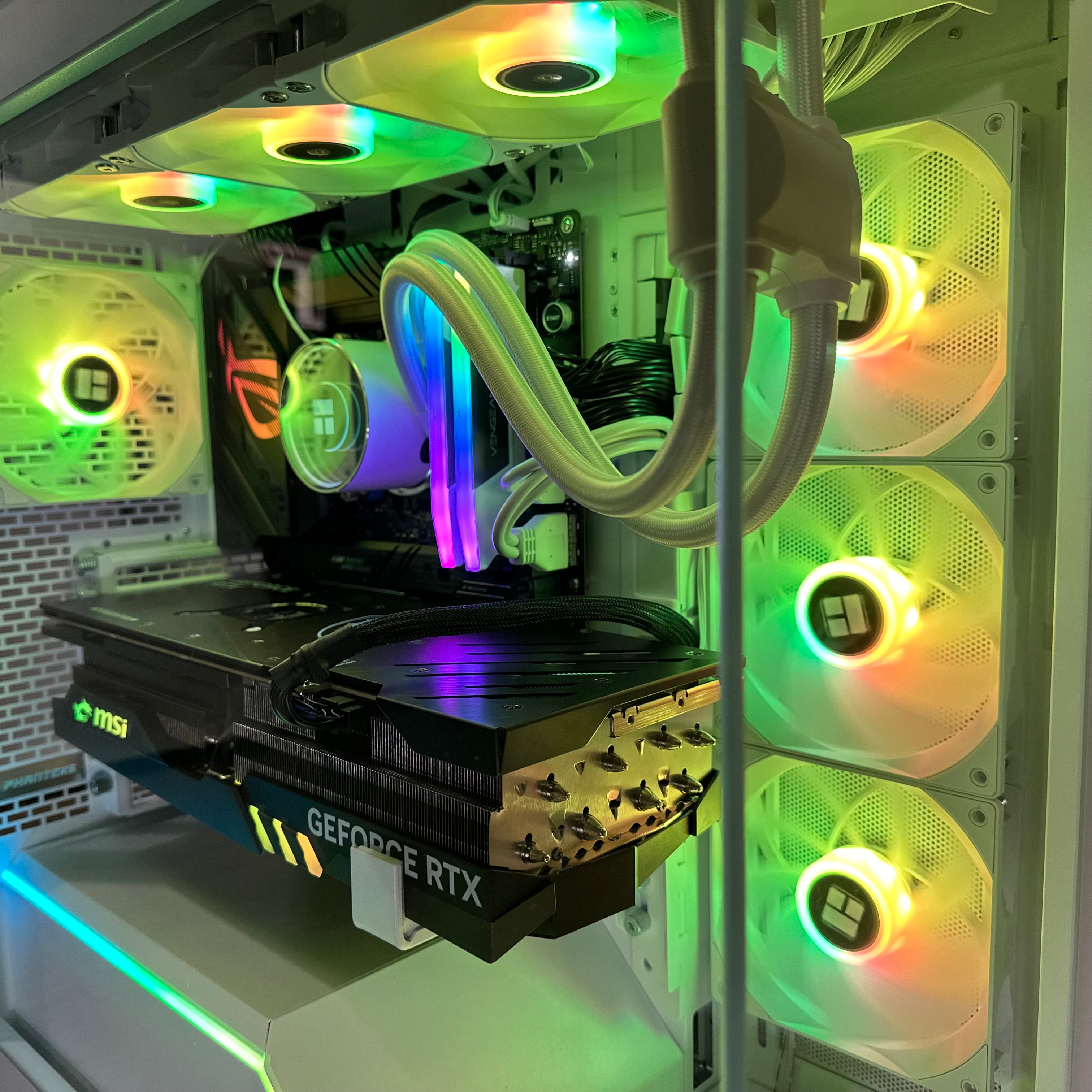
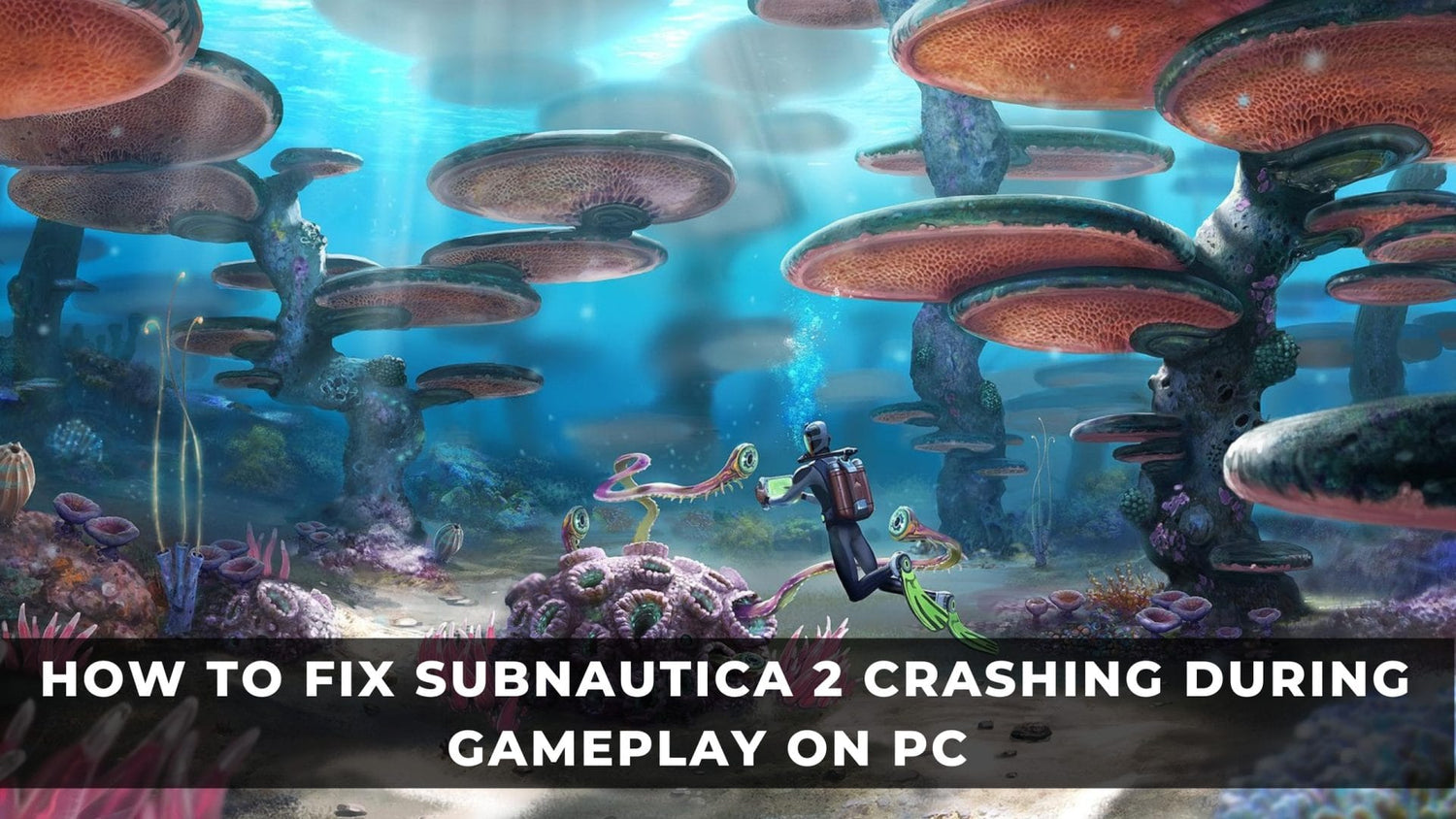
How to Fix Subnautica 2 Crashing During Gameplay on PC and What It Tells You About the Gaming PC You Actually Need
Subnautica 2 crashing during gameplay on PC is more than a frustrating bug. It is often a warning sign that your current system, driver setup, graphics configuration, or background software stack is not fully ready for modern game demands. If your game crashes after leaving the lifepod, during exploration, or in active gameplay rather than at launch, the problem may be tied to corrupted files, unstable GPU drivers, incorrect graphics-device selection, display-sync conflicts, or resource-heavy background apps. For Canadian players, this is also the right moment to ask a bigger question: is your current PC still the right machine for the games you want to play next?
The source material points to the most likely troubleshooting path: verify the game files first, then look at AMD driver rollback or updates, disable the integrated GPU where applicable, turn off NVIDIA G-SYNC, close overlay-heavy background software, and finally move on to fallback fixes like lowering settings or assigning the game to High Performance mode. Those are smart first steps. But if you are seeing repeated in-game crashes in a demanding new title, it may also be time to think beyond this one fix and evaluate whether your overall hardware platform is becoming a bottleneck.
That is where a Canadian custom PC buyer guide becomes useful. Are you trying to solve one crash and move on, or are you realizing your current computer is starting to struggle across multiple new releases? Do you just want Subnautica 2 stable at 1080p, or are you also planning for 1440p gaming, ray tracing, streaming, recording, editing clips, or creator workloads later this year? The answer changes what kind of system makes sense.
Why Subnautica 2 Crashing During Gameplay on PC Happens
Gameplay crashes can be harder to diagnose than startup failures because they often appear only after the game has loaded assets, switched regions, stressed the GPU, or triggered certain memory and driver behaviours. In practical terms, that means your system can look fine for a few minutes and then fail once the workload gets heavier.
Based on the source article, the most common causes include:
- Corrupted or missing game files
- Recent AMD graphics driver issues
- Outdated AMD Adrenalin software
- The game choosing an integrated GPU instead of the dedicated graphics card
- NVIDIA G-SYNC conflicts
- Third-party overlays and background applications causing instability
- Graphics settings that are too aggressive for the current system
On a newer or well-matched system, these issues are often fixable in minutes. On an older, poorly cooled, lower-RAM, or imbalanced build, the same game can expose larger platform weaknesses. That is why a troubleshooting article can quickly become a buying guide.
Start Here: The Best Fixes for Subnautica 2 Crashing During Gameplay on PC
If your priority is to get back in the water quickly, start with the source article’s sequence before changing too many things at once. A methodical approach makes it easier to identify the real cause.
1. Verify your game files first
This is the cleanest first step because it repairs missing or corrupted files without changing your PC configuration. If the crash began after an interrupted update, a bad install, or a file mismatch, verification can solve the issue immediately.
If you are asking yourself whether this simple step is worth trying before deeper system changes, the answer is yes. It is fast, safe, and often overlooked.
2. If you use AMD graphics, roll back a recent driver if crashes started after an update
The source article correctly highlights AMD driver rollback as an important fix for users whose crashing started after a recent graphics update. New drivers can improve support for one game while destabilizing another. If your PC was stable before the update and unstable after, rollback is a logical move.
This is especially relevant if you did not change any hardware, did not install new mods, and only noticed the issue after a software update cycle. In that case, your PC may not be underpowered at all. It may simply be dealing with a temporary driver conflict.
3. Update AMD Adrenalin if you are behind
This may sound contradictory to the rollback advice, but it depends entirely on your current version. Some users crash because they updated too recently. Others crash because they have not updated in too long. The important thing is not to assume all driver problems work in the same direction.
If you are using AMD hardware, ask yourself: am I on a known stable release for the rest of my game library, or am I several versions behind and only now hitting compatibility issues? That answer affects your next move.
4. Disable the integrated GPU if your PC has one
Many systems with both integrated and dedicated graphics can behave unpredictably if Windows or the game assigns the wrong GPU. If Subnautica 2 is trying to lean on integrated graphics, crashing during gameplay becomes much more likely. Disabling the integrated graphics device, or explicitly forcing the game onto the dedicated GPU through Windows graphics settings, can solve the problem.
This fix matters even more on prebuilt systems or older mixed-use desktops that were not originally designed around modern AAA gaming.
5. Turn off NVIDIA G-SYNC if the issue continues
The source article notes that G-SYNC can occasionally trigger glitches or lockups. That will not be the cause for every user, but it is a reasonable test if the earlier fixes do not work. Display-sync features are valuable when they work correctly, but when a game and display chain do not cooperate, stability should come first.
6. Close background apps and disable overlays
Discord overlays, hardware monitoring overlays, tuning tools, RGB suites, browser tabs, launchers, recording tools, and miscellaneous startup apps can all consume resources or interfere with game hooks. The source article specifically points to third-party software and overlays, and that is still one of the most common causes of random in-game instability.
Do you really need multiple overlays, chat apps, browser windows, music apps, RGB control software, and monitoring tools open while troubleshooting crashes? Probably not. Strip the system down to essentials, test again, and build back up one variable at a time.
7. Try the fallback fixes if the main steps do not work
Lowering graphics settings, clearing platform cache, reinstalling the game, and setting the Windows graphics preference to High Performance are all valid fallback options. These may not be as elegant as the primary fixes, but they can help narrow down whether the problem is software corruption, GPU allocation, or overall system strain.
What the Source Article Gets Right and Why It Matters
The original troubleshooting path is strong because it focuses on the most likely issues first instead of sending players immediately into advanced registry edits, BIOS changes, or risky system tweaks. For many players, file verification, proper GPU assignment, driver management, and disabling overlays will be enough.
But there is another reason this article matters: it reflects a broader pattern in new PC gaming. New releases increasingly expose weaknesses in systems that looked acceptable a year or two ago. A PC that could handle older titles at medium or high settings may now hit a wall with VRAM pressure, memory usage, background software conflicts, or thermal instability.
That raises an important buying question: if one new game is crashing now, what happens when the next wave of demanding releases arrives?
What Do You Want Your Next PC to Do for You?
This is the section many buyers skip, and it is the section that saves the most money in the long run. Before you focus on one crash, ask a better question: what should your next computer actually be capable of?
Do you just want stable 1080p gameplay in newer titles? Do you want to move up to a 1440p Gaming PC Canada setup with higher texture quality and stronger minimum frame rates? Are you thinking about a 4K gaming jump later? Will you stream on Twitch or YouTube? Do you want to record gameplay, edit clips, create thumbnails, use Photoshop, work in Premiere Pro, or explore Blender and Unreal Engine later?
If your answer includes more than one of those goals, buying only for today’s minimum fix can become expensive. A system that merely survives this one game may feel outdated again much sooner than you expect.
Subnautica 2 Crashing During Gameplay on PC Can Be a Hardware Warning, Not Just a Software Problem
Not every crash means you need a new machine. That said, repeated crashing in modern games can reveal patterns such as:
- Insufficient system memory for current multitasking and game demands
- Older GPUs with weaker driver support in newer releases
- Thermal limits in cramped or poorly cooled cases
- Power-delivery instability in lower-quality systems
- Storage slowdowns from aging or nearly full drives
- Poor part matching in generic prebuilts
If your PC also stutters in other modern titles, drops frames when alt-tabbing, struggles with asset loading, or becomes unstable while Discord, recording software, or browser tabs are open, your issue may be larger than one game patch.
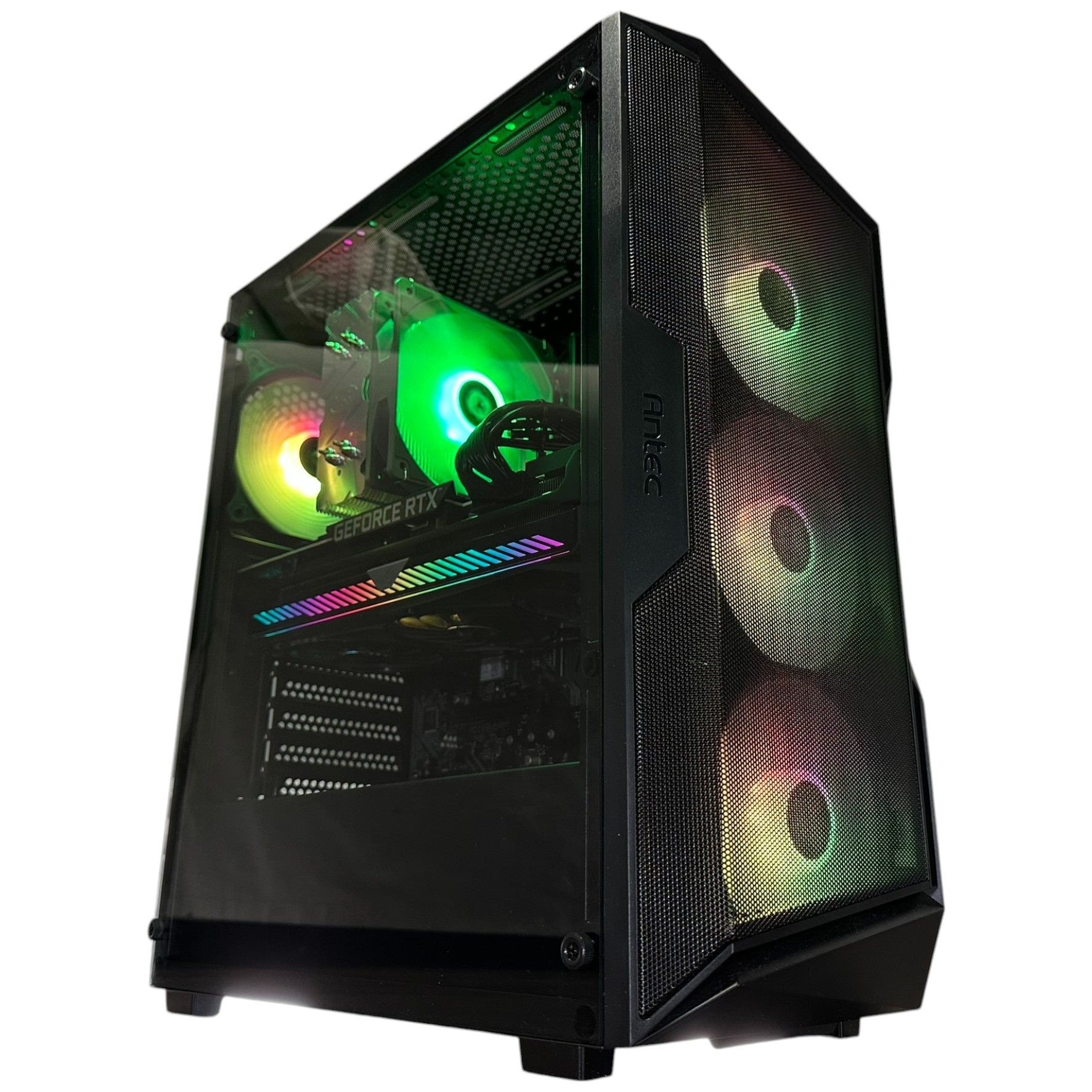
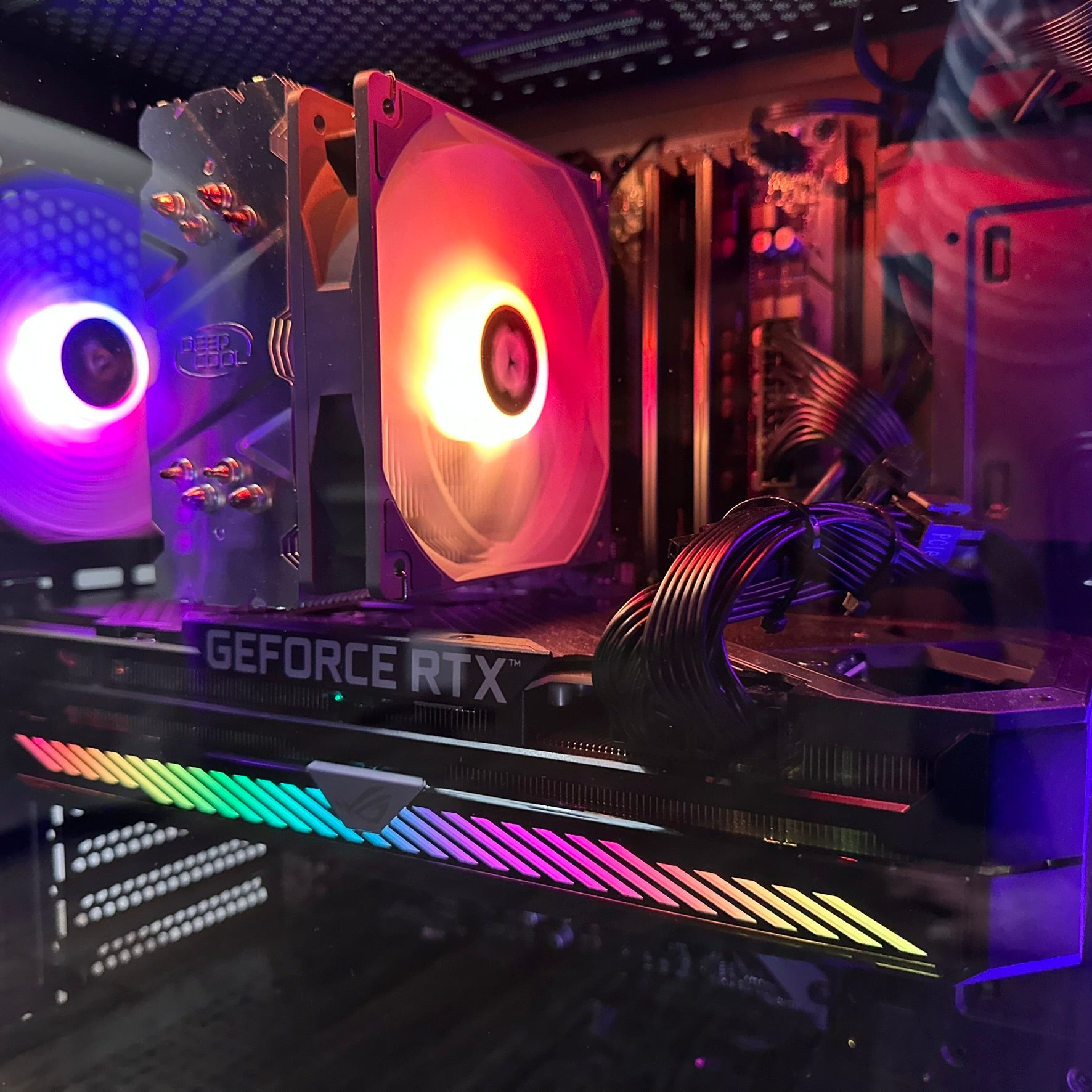
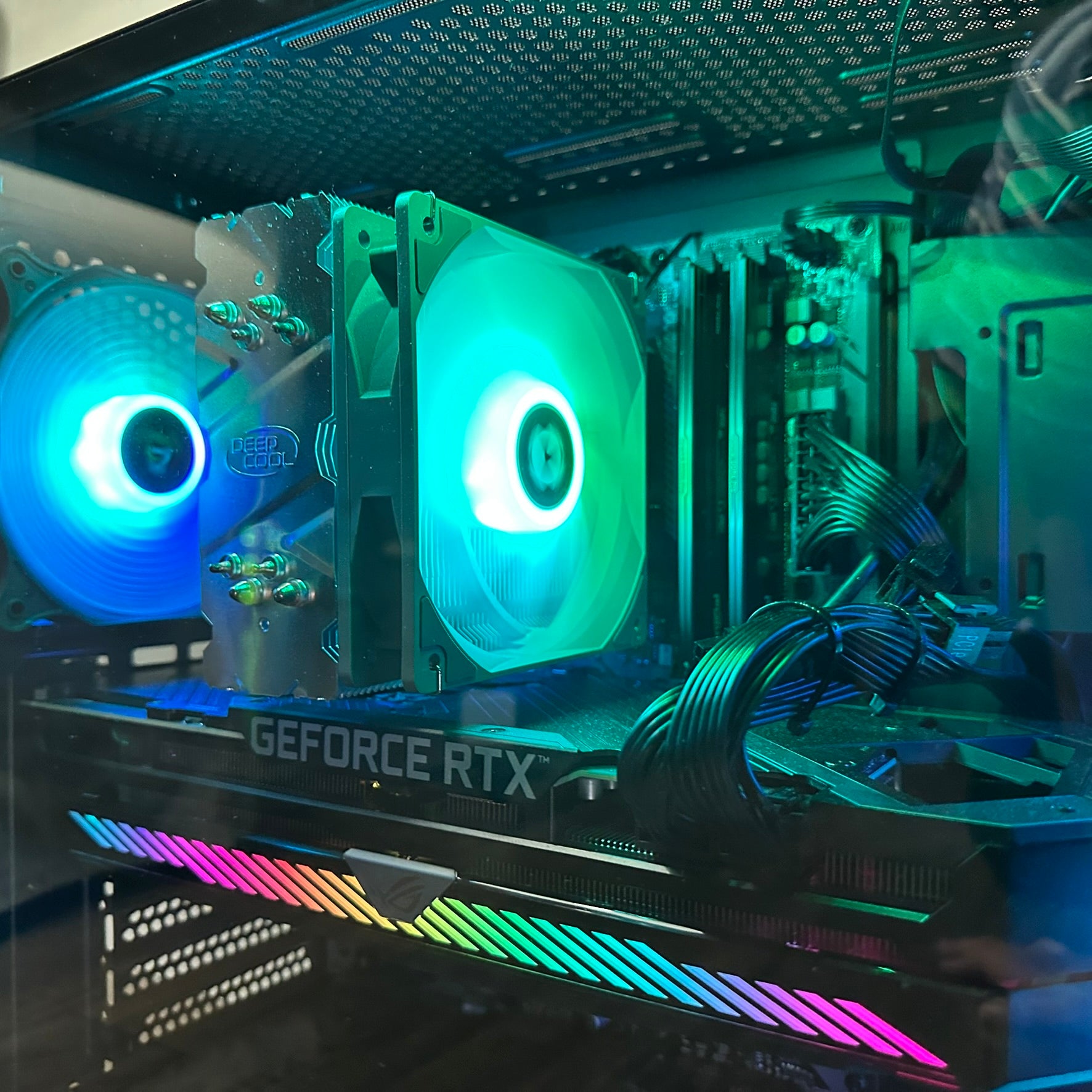
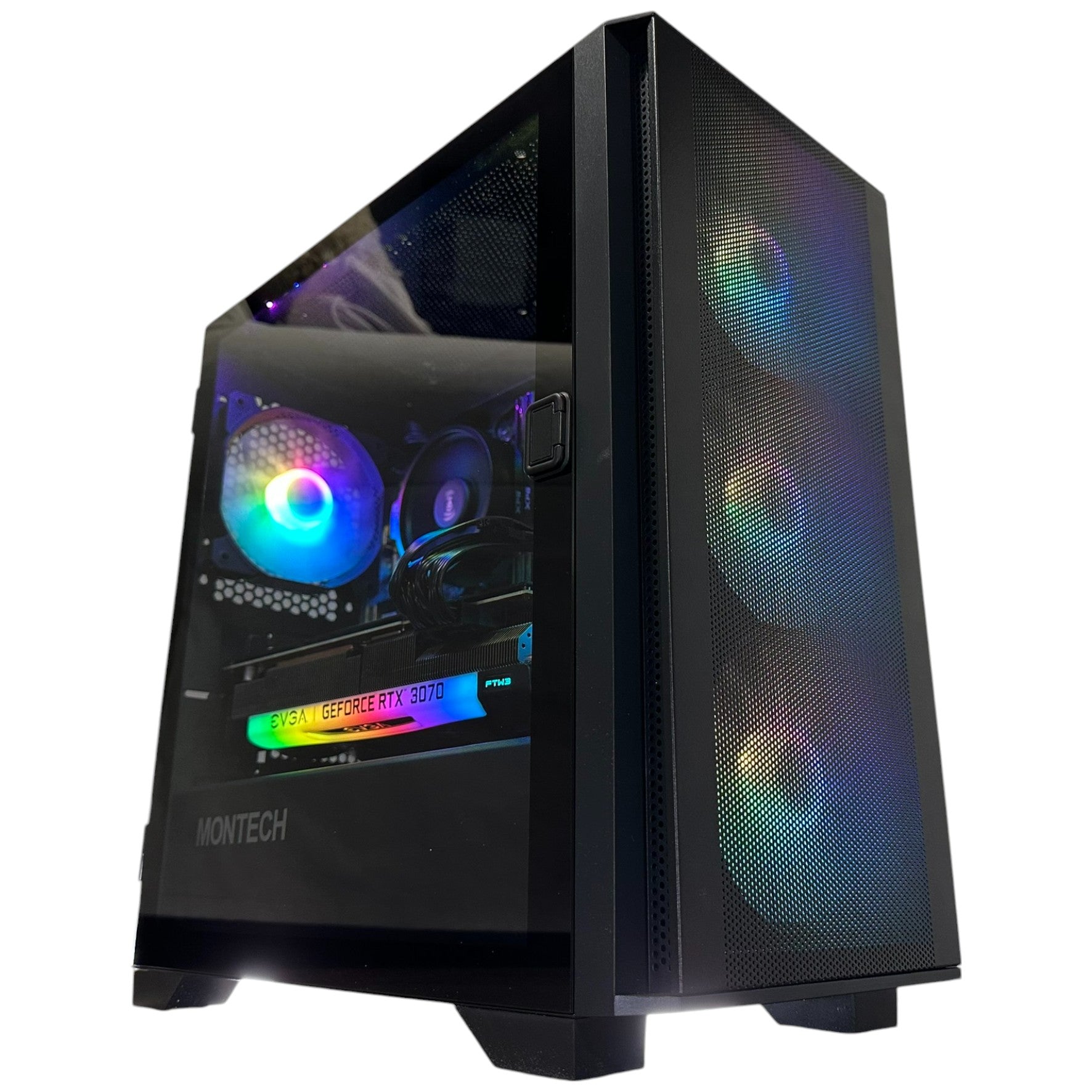
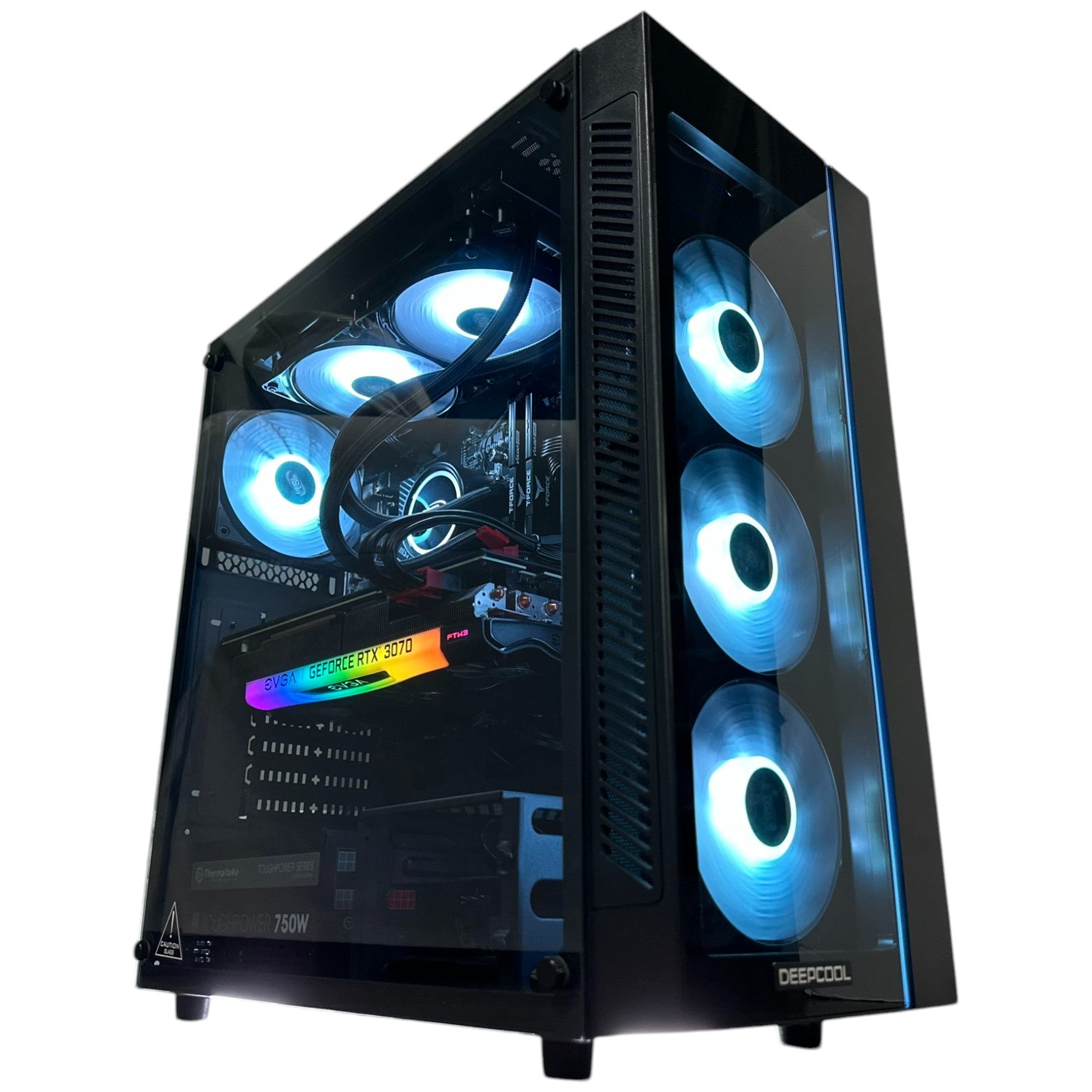
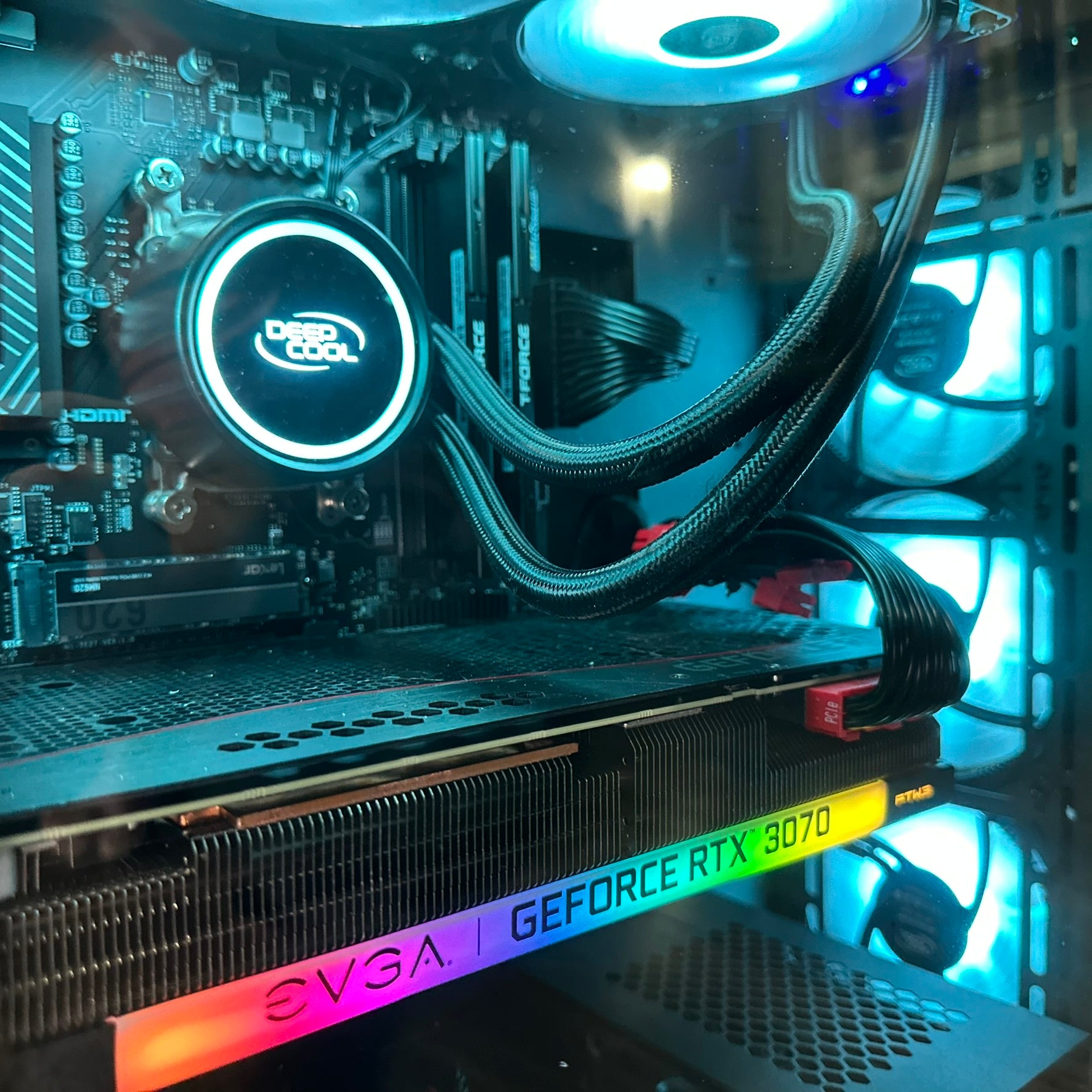
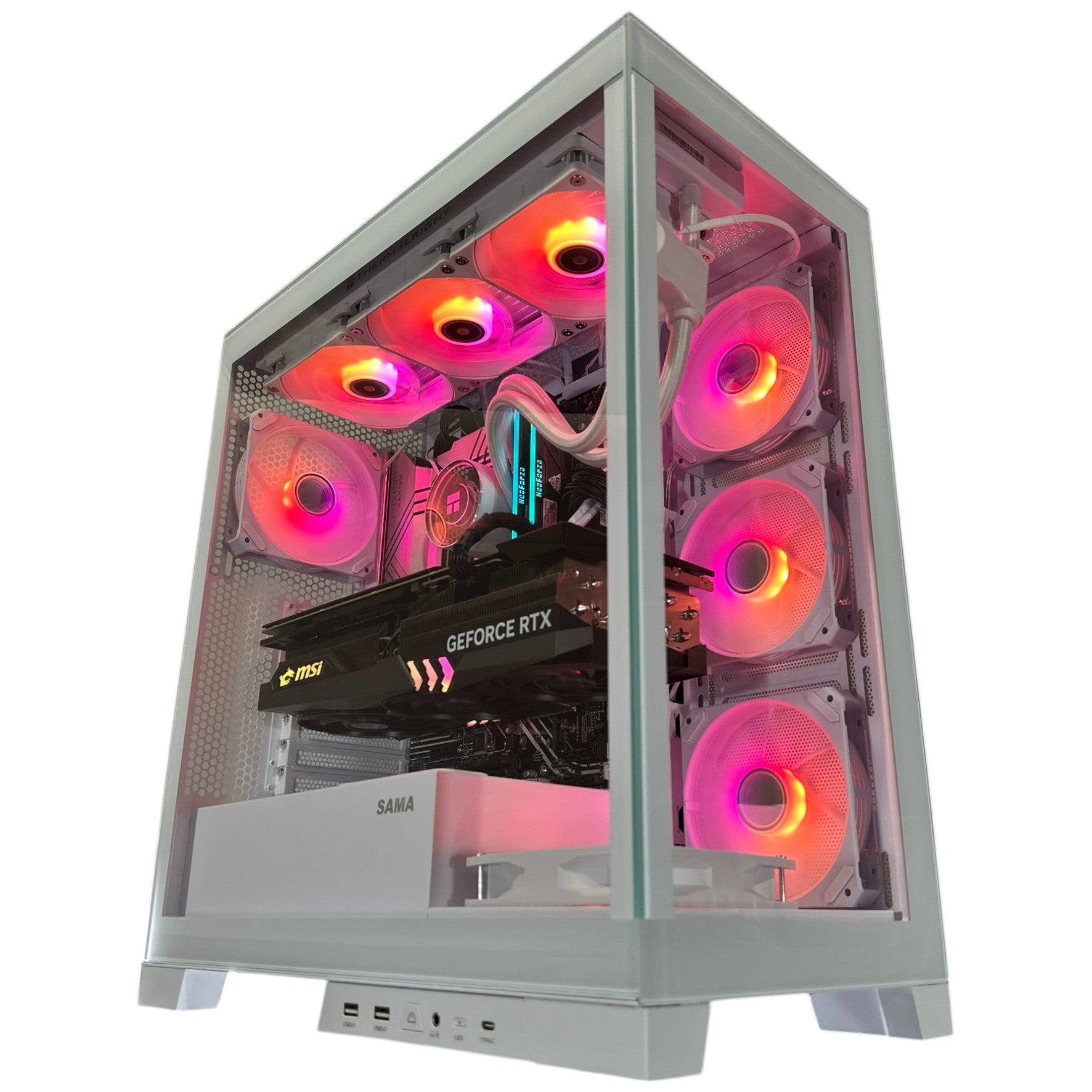
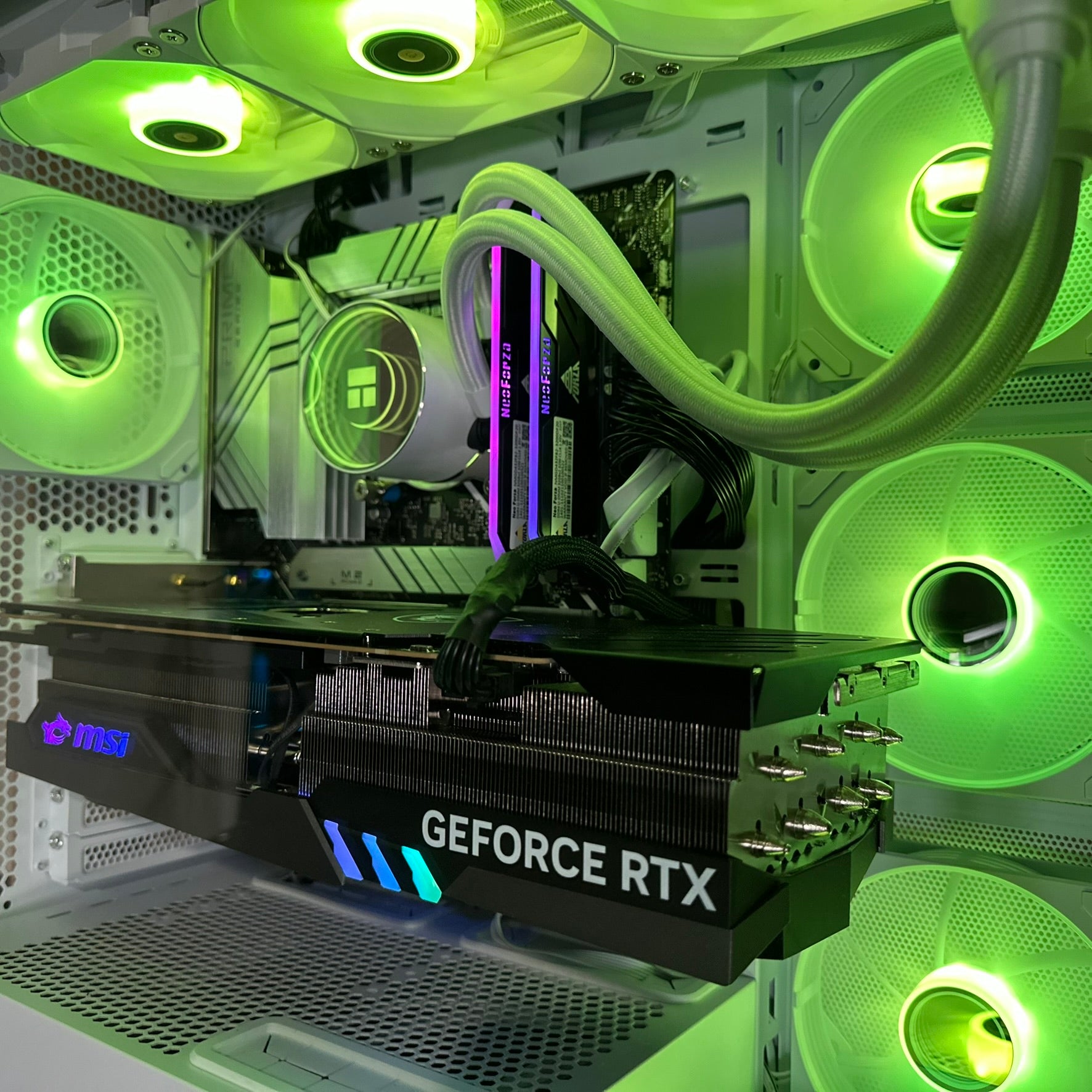
This is where working with a Canadian custom PC builder starts to make sense. Instead of guessing which one part is failing your games, you can choose a balanced build designed around the actual resolution, settings, and workloads you care about.
What Performance Tier Fits You Best?
One of the most useful questions any buyer can ask is simple: what performance tier do I actually need so I do not overbuy or underbuy?
Entry-level: good for stable 1080p gaming
If your main goal is to play newer titles at 1080p with sensible settings and solid stability, a budget-minded gaming desktop may be enough. This tier suits players who want strong value, lower cost of entry, and a noticeable step up from an aging machine.
Ask yourself: are you mainly playing on a 1080p monitor, avoiding heavy ray tracing, and trying to keep your total cost practical? If yes, an entry-level or budget gaming configuration may be the right fit.
Mid-range: ideal for 1080p ultra or 1440p gaming
This is often the sweet spot for buyers who want better longevity. A stronger mid-range GPU, more RAM, faster storage, and a better-matched CPU can transform not only game performance but also system stability in demanding titles.
If you are wondering what PC do I need for 1440p gaming, this is usually the right conversation. It is also the right tier if you like open-world games, higher texture settings, better frame consistency, and some room for future releases.
Upper-tier: gaming plus streaming, editing, and content creation
Do you want to game and stream from one machine? Record clips while playing? Edit videos for YouTube or social media? Use OBS, Photoshop, Lightroom, or Adobe Creative Cloud without feeling like your PC is fighting you every step of the way?
If so, a stronger Gaming and Creator PC Canada style build is worth considering. More CPU cores, more RAM, faster SSD storage, and a GPU with stronger modern encoding and rendering support can make a major difference.
High-end: 1440p maxed out, 4K ambitions, ray tracing, and long-term headroom
If your goal is premium visual quality, stronger longevity, and less pressure to upgrade again soon, a high-end build may save you money over the life of the system. Buyers in this category are usually asking questions like: what PC do I need for 4K gaming, how long will a high-end gaming PC last, or should I finance a stronger build now instead of replacing a weaker one sooner?
This tier is also attractive if you expect game requirements to climb quickly and do not want another panic upgrade next year.
Are You Only Gaming, or Are You Also Streaming and Creating?
Many buyers still think in old categories: gaming PC, work PC, editing PC. In reality, modern users overlap across all three. A player who starts with Subnautica 2 may also stream co-op sessions, cut short-form videos, create graphics for social channels, or experiment with photo editing and content creation tools.
That is why a crash-fix article can become a broader planning moment. If you are already shopping because your current system feels unstable, should you buy only enough for one game, or should you choose a system that also supports your next hobby, side project, or business use?
For example:
- If you want smooth gameplay and OBS, think about a stronger streaming-ready configuration.
- If you edit gameplay clips, a Creator PC Canada build may be smarter than a basic gaming-only rig.
- If you use Photoshop, Lightroom, Illustrator, or Canva for personal or freelance work, your PC should reflect that.
- If you want Blender, Unreal Engine, or heavier rendering tools later, you may need workstation-level planning now.
Why Canadian Buyers Should Think About Stability, Not Just Specs
Specs sell systems, but stability keeps customers happy. Anyone can focus on a headline GPU. Fewer sellers talk enough about airflow, power quality, thermals, RAM matching, SSD reliability, BIOS maturity, and testing. Yet those details matter when a game is crashing during gameplay and you are trying to figure out whether the problem is temporary software or an underlying system weakness.
That is one reason custom builds matter. A well-matched Custom Gaming PC Canada setup is not only about frame rates. It is also about avoiding the weird instability, heat, and part conflicts that show up in demanding games.
Would you rather save a little upfront and wonder why a new release crashes under load, or invest in a properly balanced build that is stress tested and ready for modern gaming? Most buyers who have dealt with repeated instability already know the answer.
Why Timing Matters More Than Many Buyers Realize
If your current machine is beginning to fail in newer games, waiting too long can make your replacement decision worse. Demand spikes around major game releases, seasonal buying periods, and hardware launch cycles can all put pressure on complete-system pricing. Memory, SSDs, and graphics hardware do not always move in a buyer-friendly direction.
That does not mean everyone should rush into a purchase blindly. It does mean you should ask the right timing questions.
Are you buying before a wave of new AAA releases you actually care about? Are you trying to avoid another season of troubleshooting crashes, stutters, and compatibility issues? Are you close to needing a monitor upgrade, software upgrade, or creator workflow upgrade as well? Would replacing your system now prevent you from paying more later for a rushed purchase?
Those are real buyer questions, especially in Canada, where availability and landed cost can make last-minute shopping more painful than planned shopping.
Should You Buy a Budget System or Finance a Stronger One?
This is one of the most practical questions in the market right now. If your old PC is beginning to show its age, you may be tempted to patch the problem with the cheapest possible replacement. Sometimes that is the right move. Sometimes it only delays the next upgrade.
If a stronger GPU, more RAM, better cooling, and a faster SSD would significantly extend the useful life of your next system, financing can be the more disciplined option rather than the more expensive one. Why? Because it can help you secure a better-balanced machine before replacement costs rise again, while avoiding the frustration of buying too little and upgrading too soon.
Would a monthly payment on a stronger system make more sense than paying for an underpowered one in full? If your next PC needs to cover gaming, streaming, editing, school, work, and everyday multitasking, that question becomes very important.
Groovy Computers offers Canadian buyers a more flexible path with custom systems and financing options that can extend up to 4 years, helping customers move into a more capable machine without forcing a weak compromise today.
What Kind of Buyer Are You Right Now?
The player who just wants the crashes gone
If that is you, follow the troubleshooting order from the source article carefully. Verify files, test GPU drivers, disable the integrated GPU if needed, turn off G-SYNC, and clear out overlays. If the game stabilizes and the rest of your library runs well, you may not need a replacement yet.
The player whose system is starting to struggle everywhere
If Subnautica 2 is only the latest problem, take the signal seriously. A system that crashes in one modern game today may choke on the next release tomorrow. This buyer should consider a balanced gaming upgrade sooner rather than later.
The gamer who also wants to stream or create content
If you are moving beyond pure gaming, build for the broader workflow now. The cost difference between a basic gaming tower and a more capable creator-friendly system is often easier to justify than replacing the whole machine again after your needs expand.
The buyer trying to maximize long-term value
If you hate upgrading frequently, look one tier higher than your bare minimum. The cheapest system that runs a game today is not always the best long-term buy.
Questions to Ask Before You Choose Your Next PC
What games are you planning to play over the next 12 to 24 months, not just this week?
Are you targeting 1080p, 1440p, or 4K?
Do you care about ray tracing, higher texture settings, and stronger frame consistency?
Will you stream, record gameplay, or run OBS while gaming?
Do you need a system that can also handle Premiere Pro, DaVinci Resolve, Photoshop, Lightroom, Illustrator, or Blender?
Do you want a budget gaming computer, a premium RTX gaming PC, a custom creator PC, or a workstation-style machine that can do multiple jobs well?
Would financing help you avoid settling for a system you will outgrow too soon?
Do you want help choosing a build from a real Canadian custom PC company instead of guessing from generic listings?
Why Groovy Computers Is a Strong Fit for Canadian Buyers
Groovy Computers is positioned for customers who want more than a random spec sheet. If you are shopping for a Gaming PC Canada solution, a creator-focused desktop, or a workstation-capable build, the goal is not just to sell a tower. The goal is to match your workload, your performance target, and your upgrade timeline.
That matters when you are deciding between a budget system and a stronger long-term machine. It matters when you are balancing gaming with editing or streaming. It matters when you are trying to avoid the instability and corner-cutting that often show up in generic mass-market systems.
For Canadian customers, Groovy Computers offers the combination many buyers are looking for: custom builds, rigorous testing, a 1-year warranty, and systems built with real use cases in mind rather than one-size-fits-all marketing. If you are in Nova Scotia, Atlantic Canada, or shopping online from elsewhere in Canada, that trust factor matters.
If Subnautica 2 Is Crashing Today, What Will Your Next Big Game Demand Tomorrow?
This is the bigger story behind the source article. Troubleshooting matters, and the listed fixes are worth doing. But newer PC games continue to increase pressure on drivers, VRAM, CPU scheduling, system memory, and background resource use. If your current machine is already unstable, the next major release probably will not be easier on it.
So ask yourself one last practical question: do you want to keep patching around the edges, or do you want a properly built system that is ready for the next round of games and workloads?
If you want help choosing a custom gaming desktop, a gaming-and-streaming system, a creator PC, or a stronger all-around machine that can keep up with modern titles, visit GroovyComputers.ca. Whether you need a value-focused gaming upgrade or a higher-tier build that saves you from upgrading again too soon, Groovy Computers can help you choose the right fit with confidence.
Final Thoughts on Subnautica 2 Crashing During Gameplay on PC
Subnautica 2 crashing during gameplay on PC can often be fixed through file verification, smarter GPU selection, driver changes, G-SYNC adjustments, and shutting down background overlays. The source article gives a solid fix path, and many players will solve the problem that way.
But if this crash is part of a larger pattern, it may be the clearest sign yet that your current computer is no longer aligned with the games, settings, and workloads you want to run. If you are already wondering what gaming PC you need, whether you should move to 1440p, whether you should stream, or whether financing a better system now would save you from another upgrade later, this is the right time to plan properly.
The best gaming PC is not the one with the loudest headline. It is the one that fits your real use case, stays stable under load, and gives you room to grow. For Canadian buyers who want that kind of confidence, a custom-built system from Groovy Computers is the smart next step.
#Subnautica2 #GamingPCCanada #CustomGamingPCCanada #GamingPCBuilderCanada #CanadianCustomPCBuilders #1440pGamingPCCanada #CreatorPCCanada #GamingAndStreamingPCCanada #NovaScotiaComputers #GroovyComputers
Groovy Computers | All Rights Reserved



Leave a comment
This site is protected by hCaptcha and the hCaptcha Privacy Policy and Terms of Service apply.