
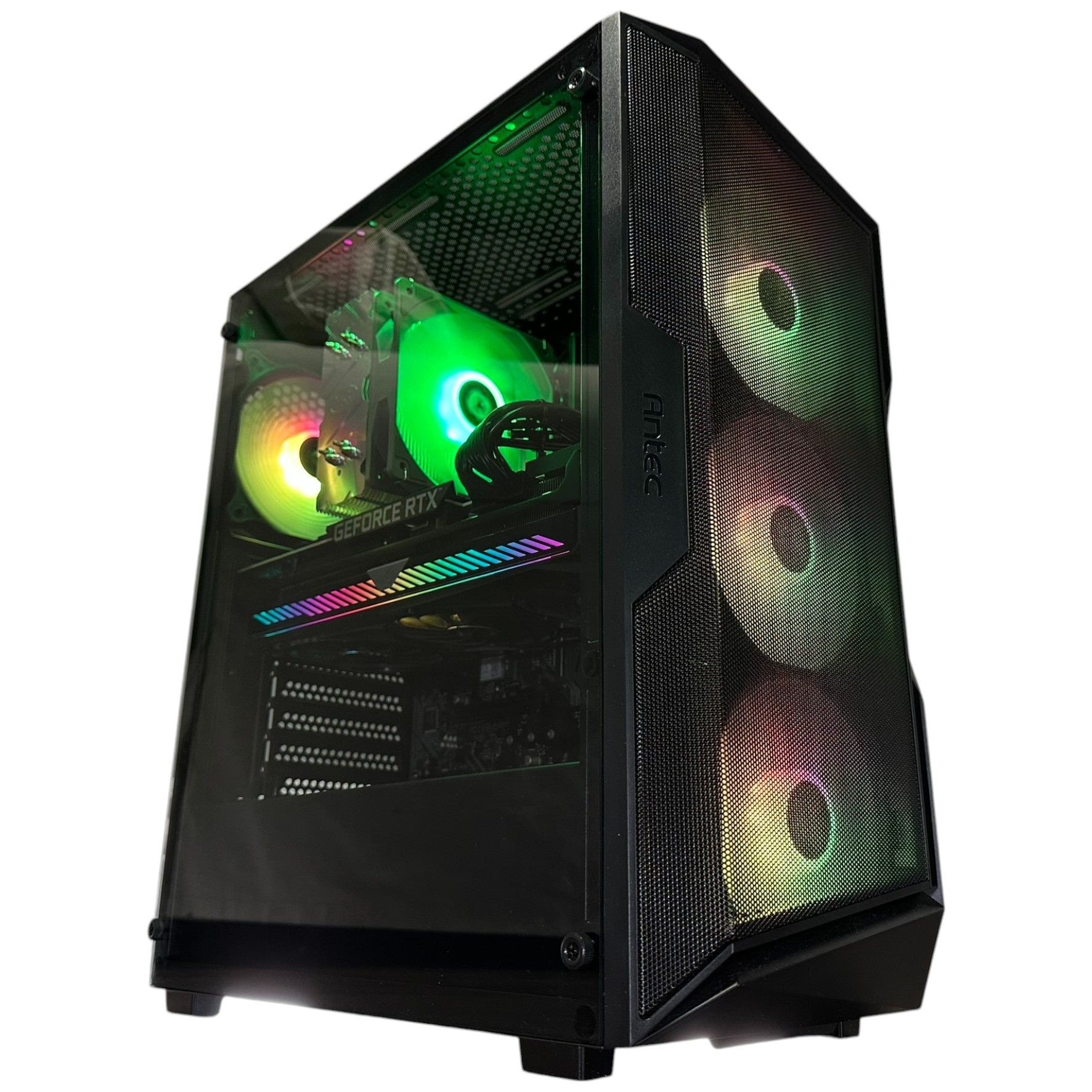
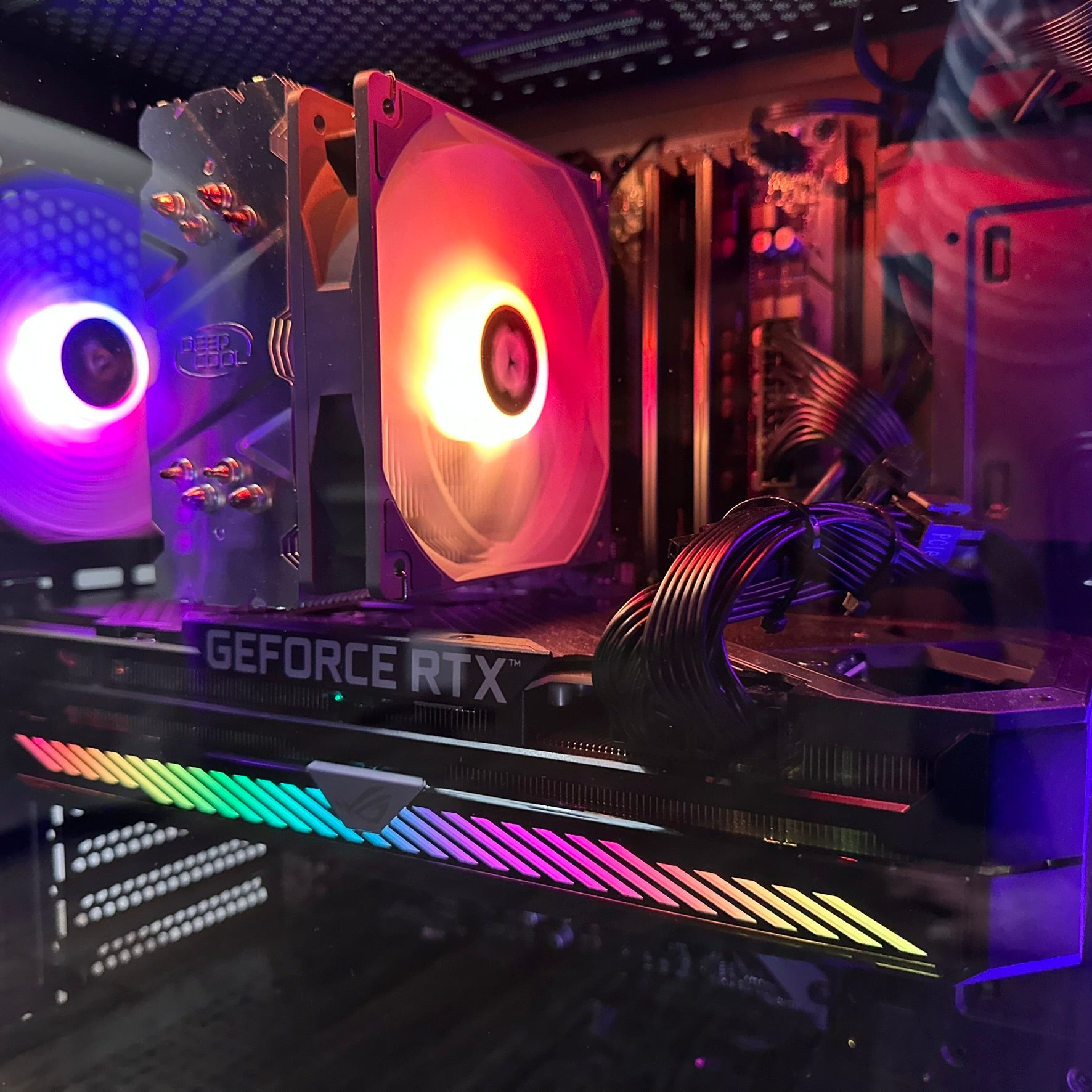

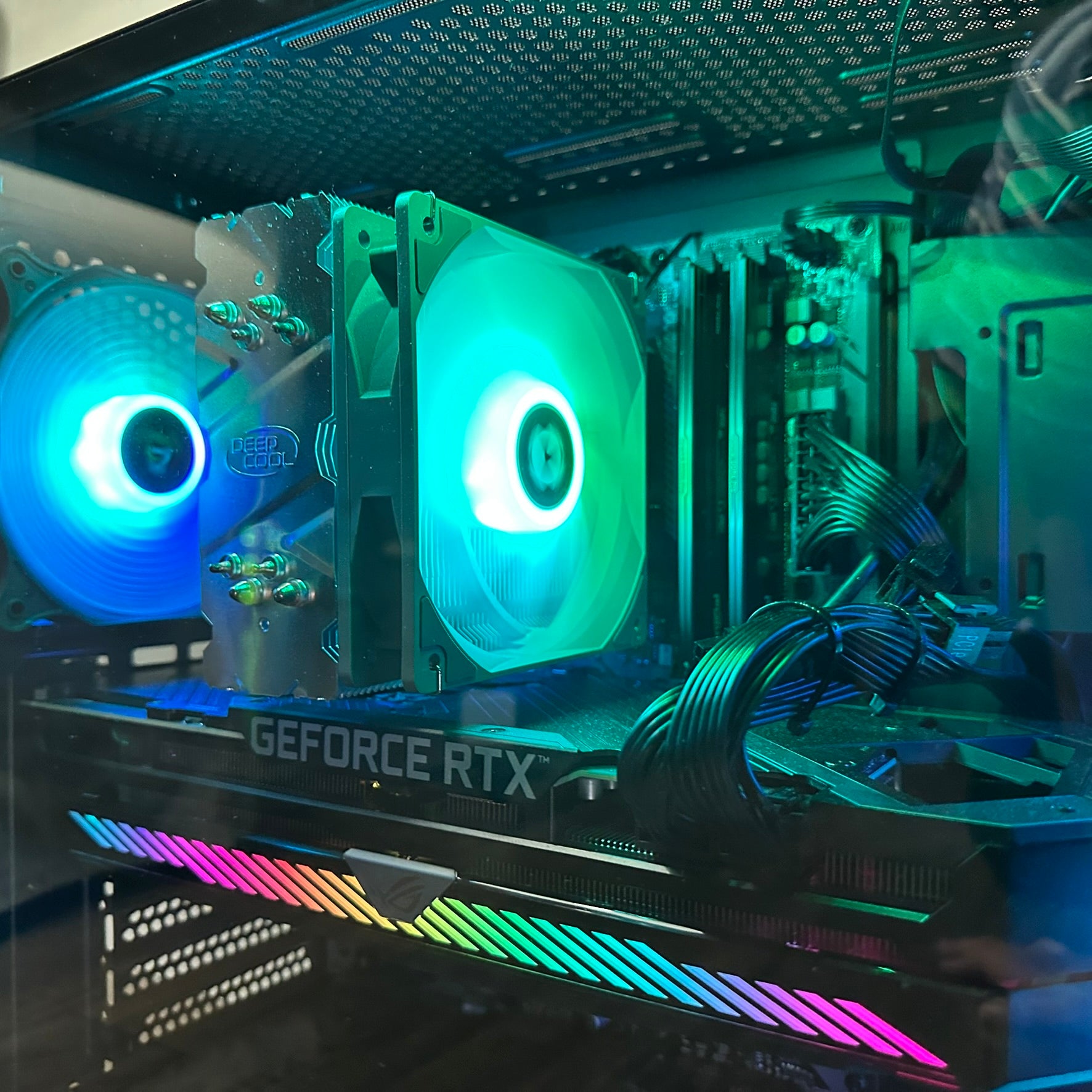
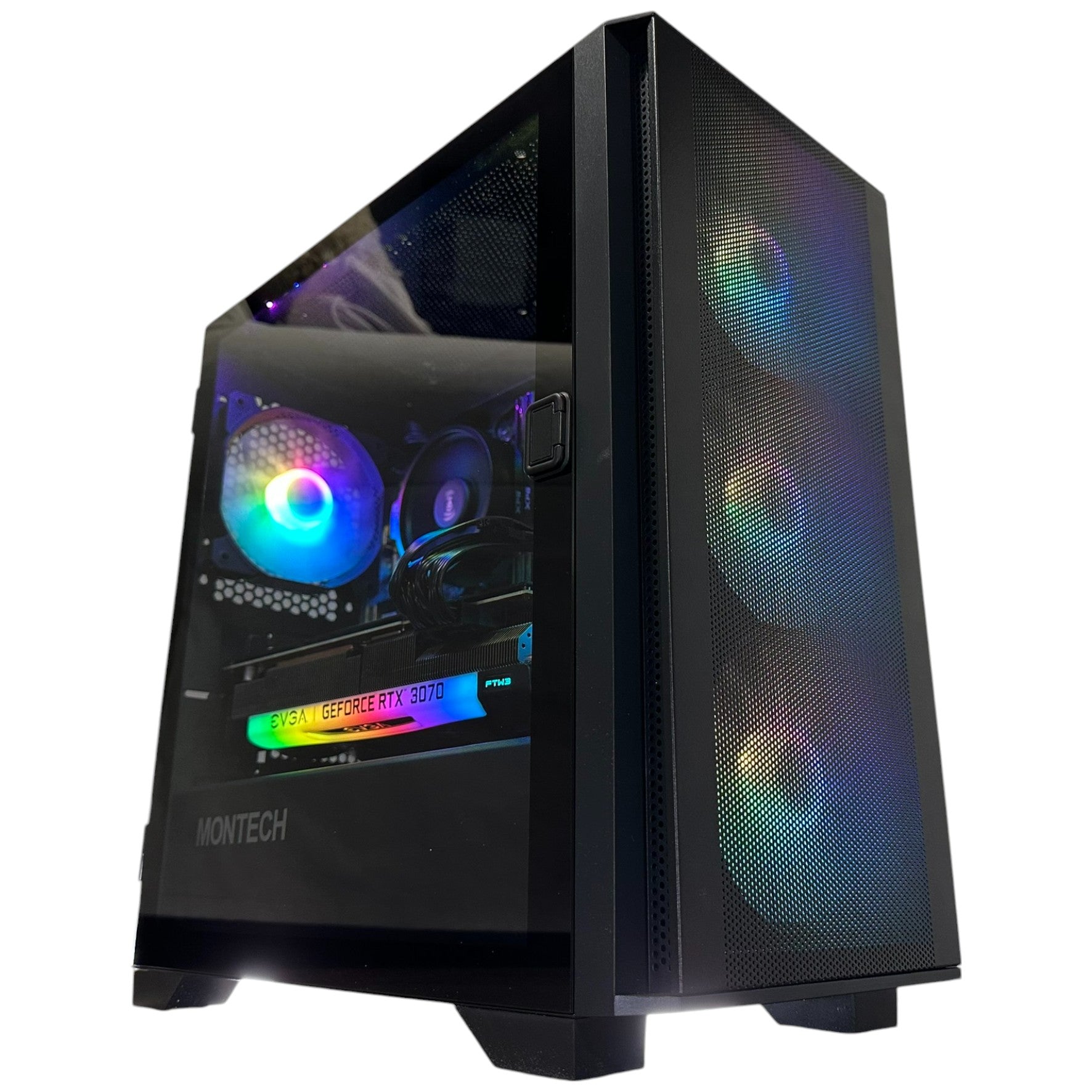
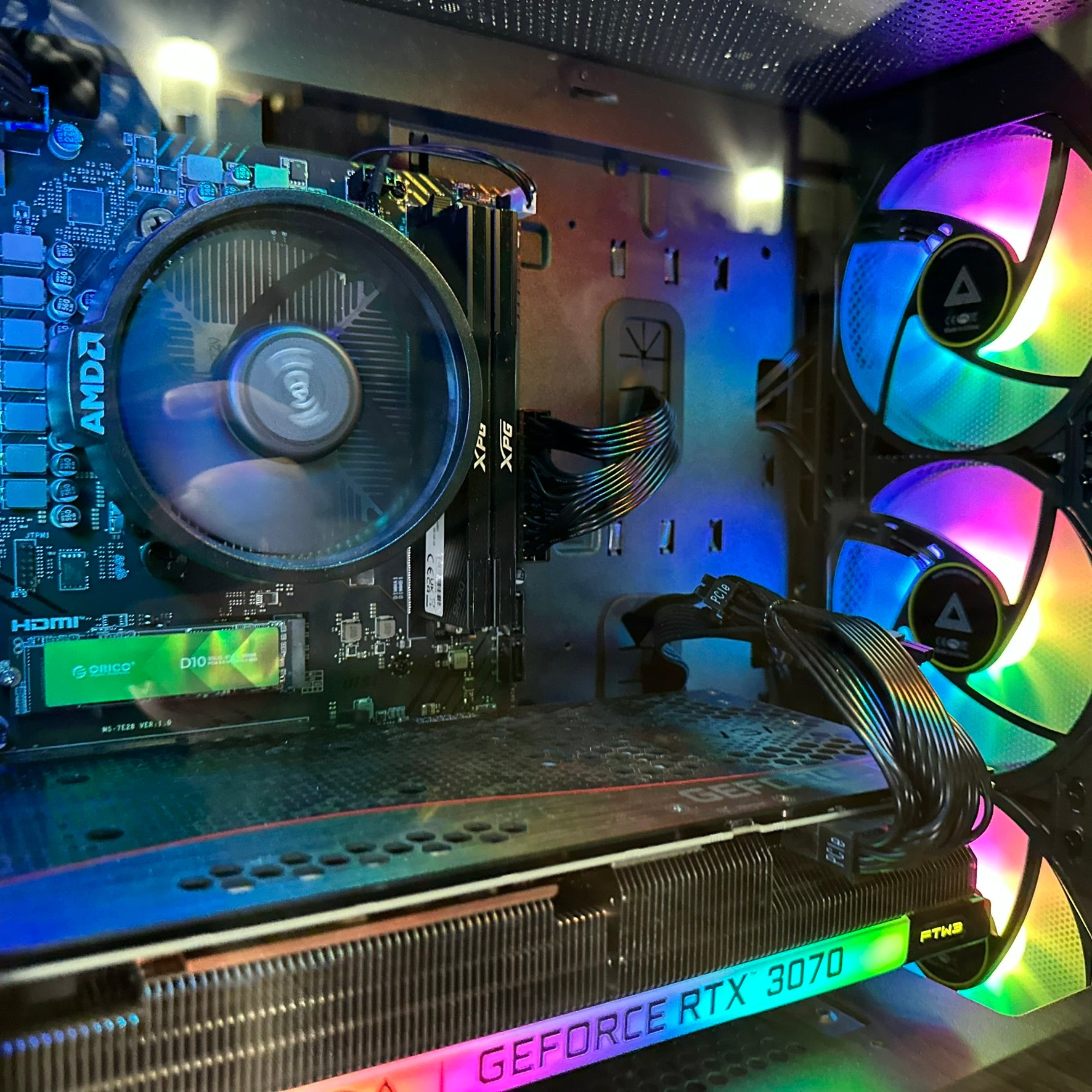
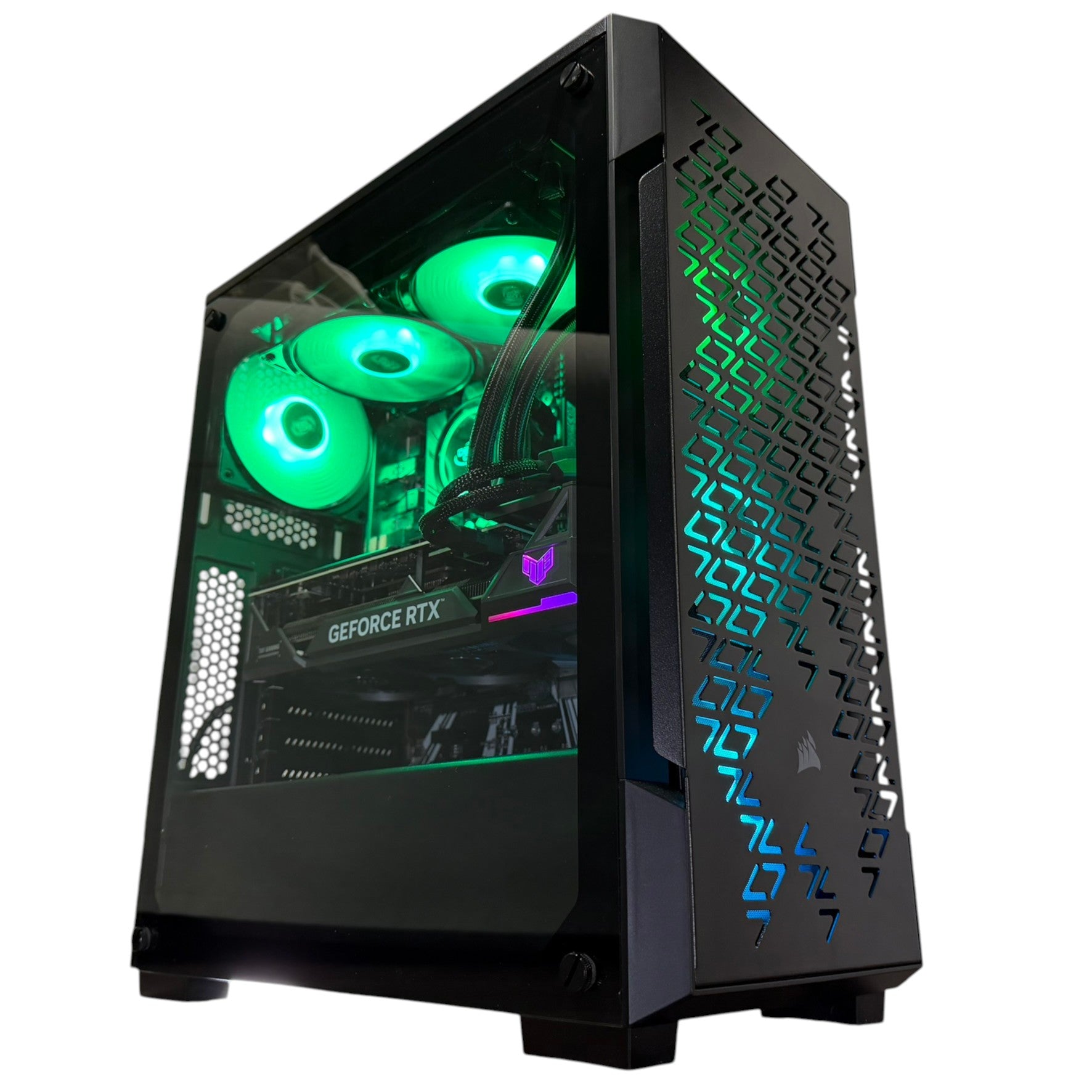

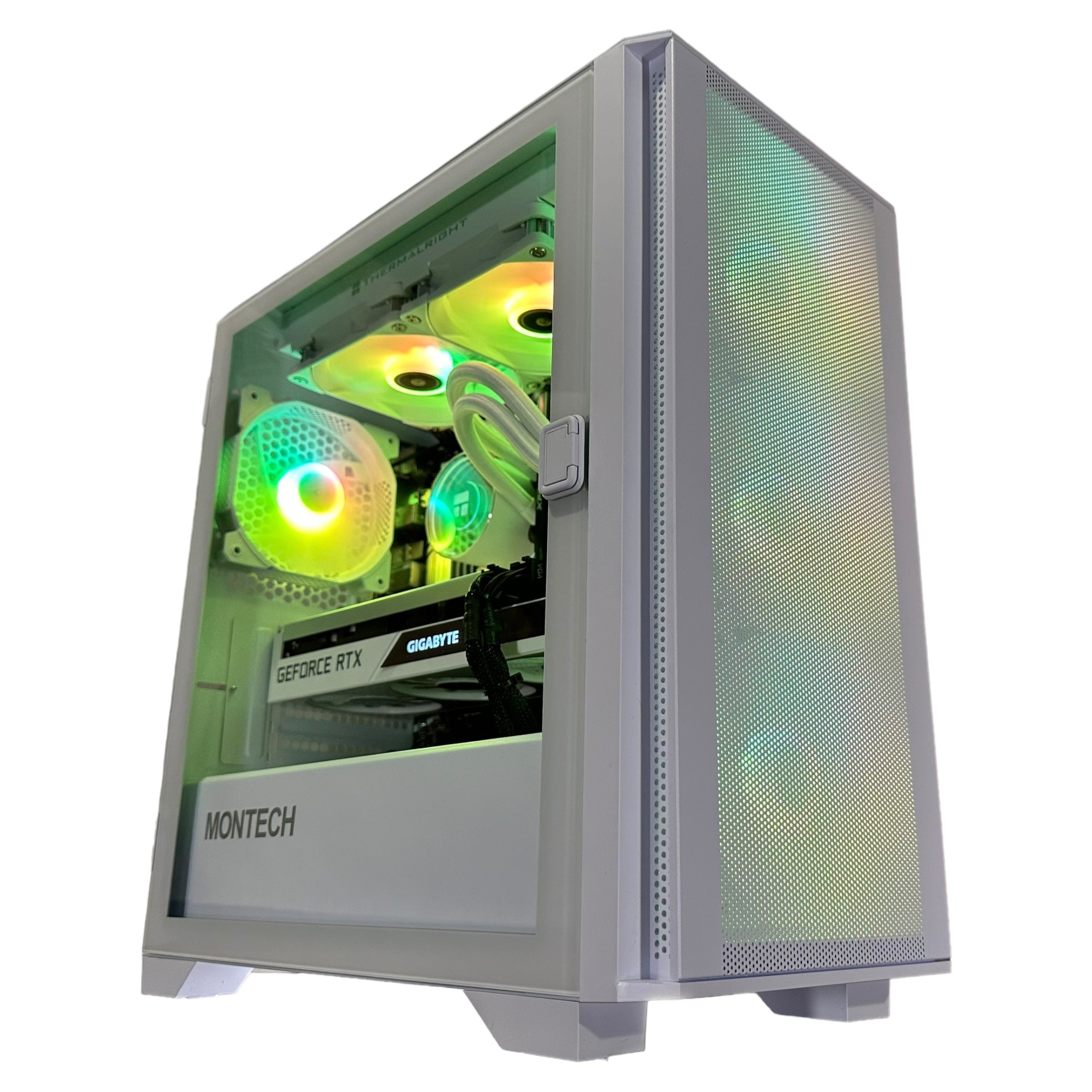
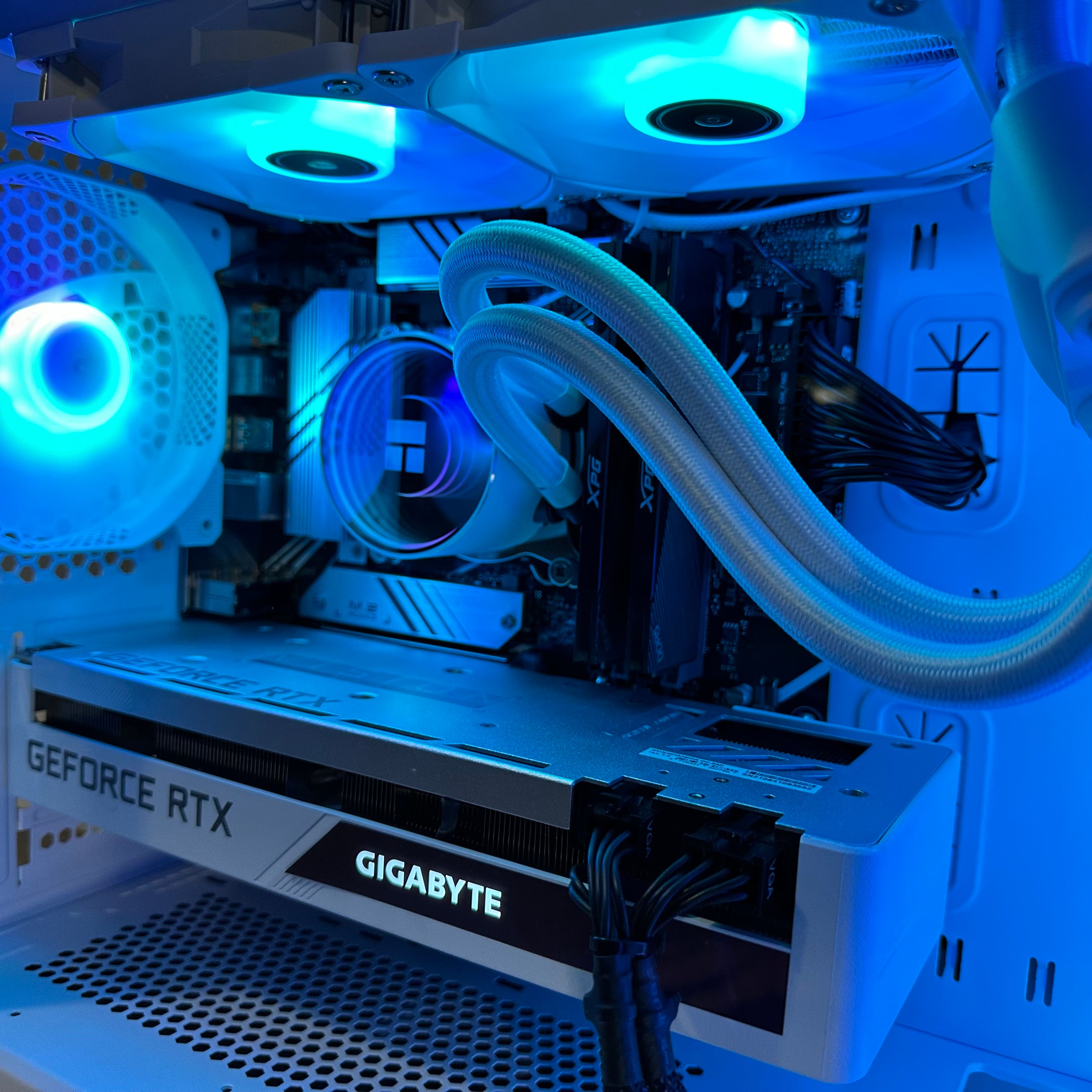
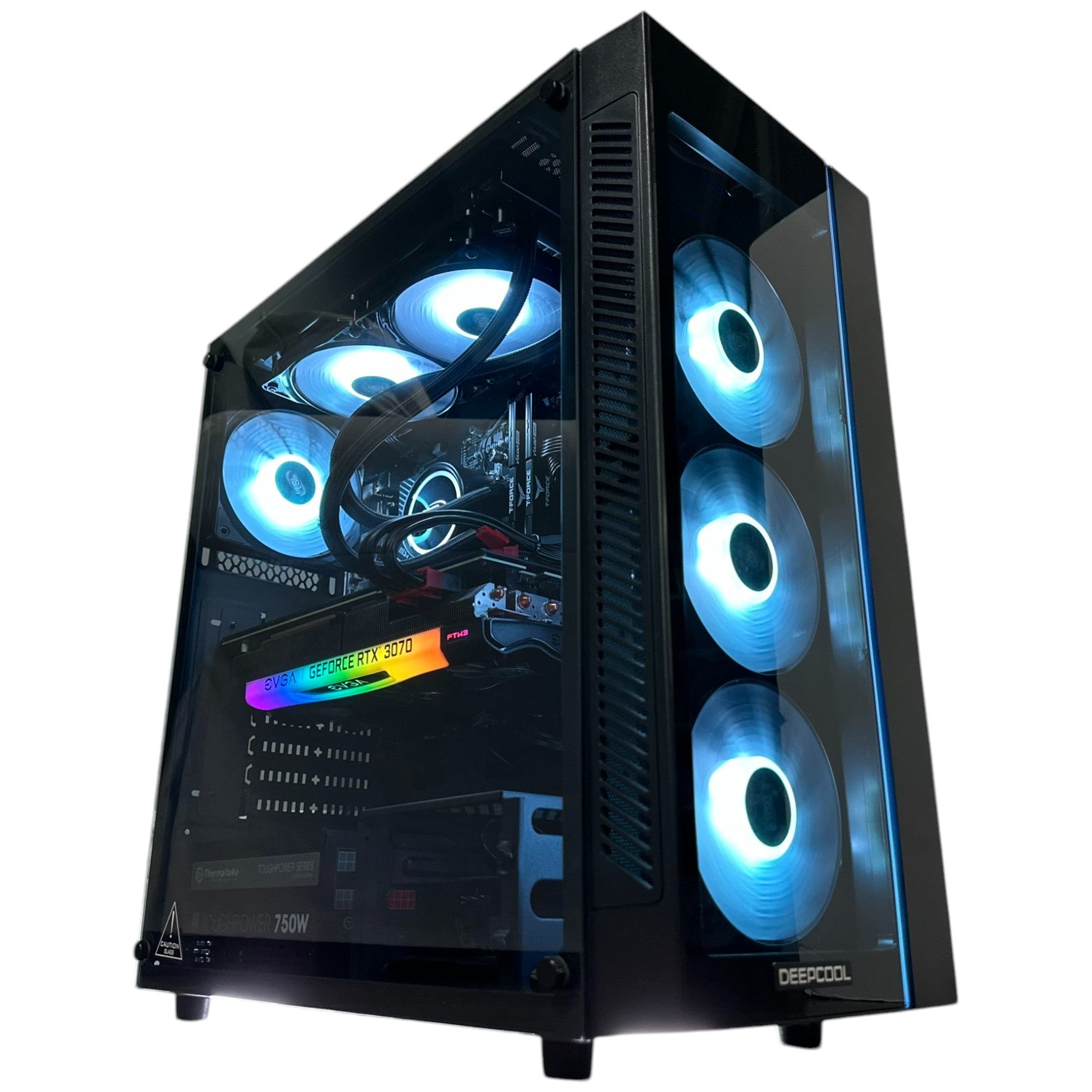
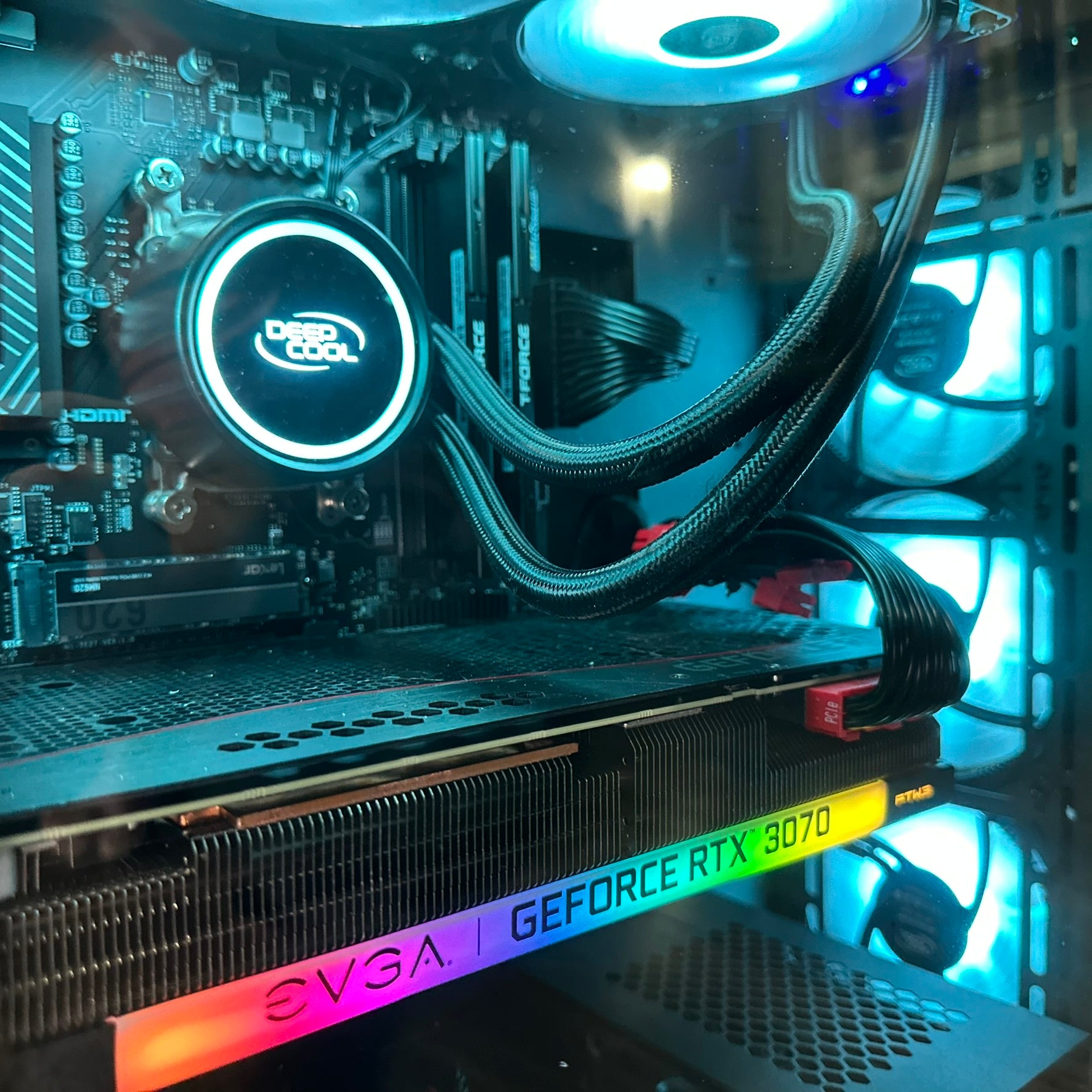
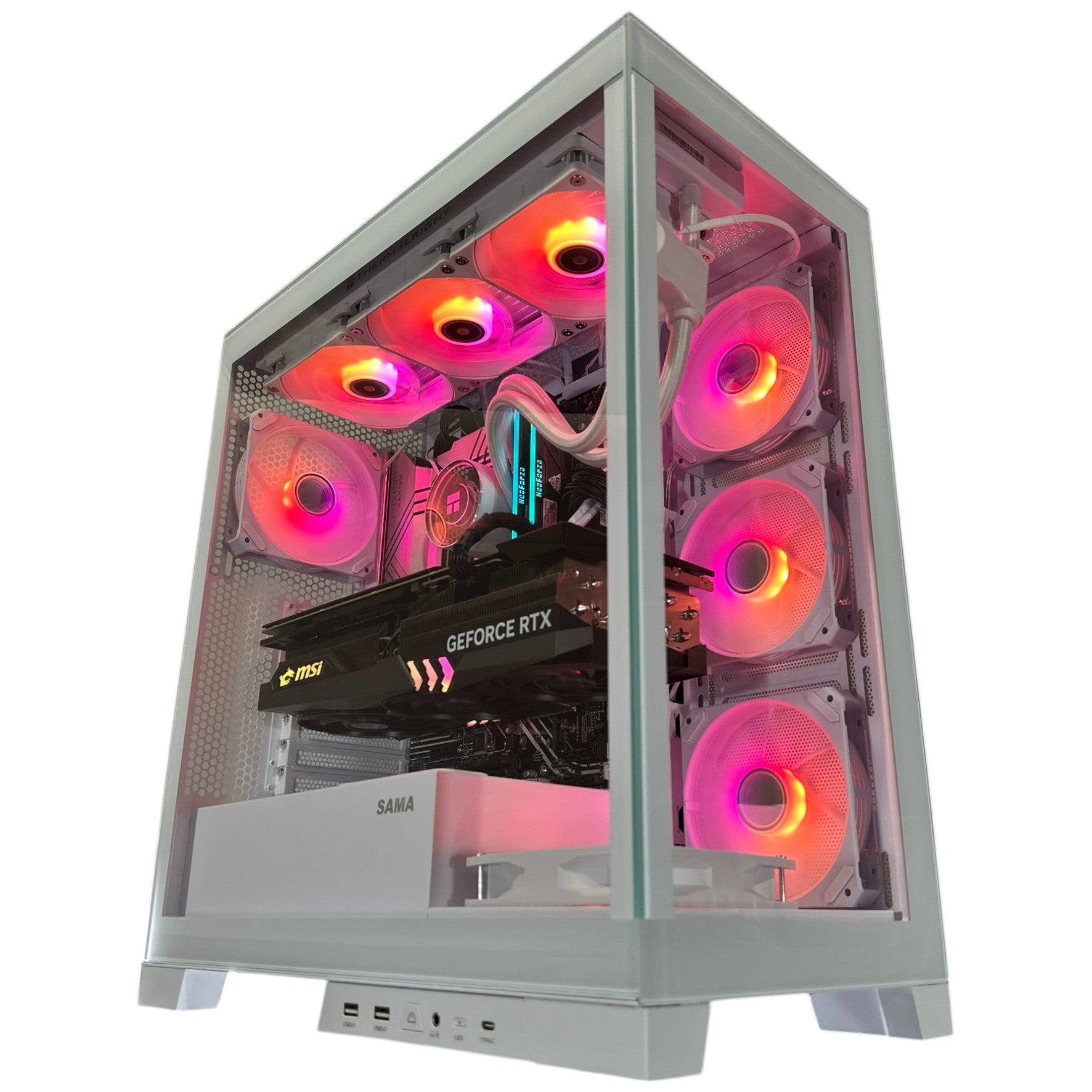
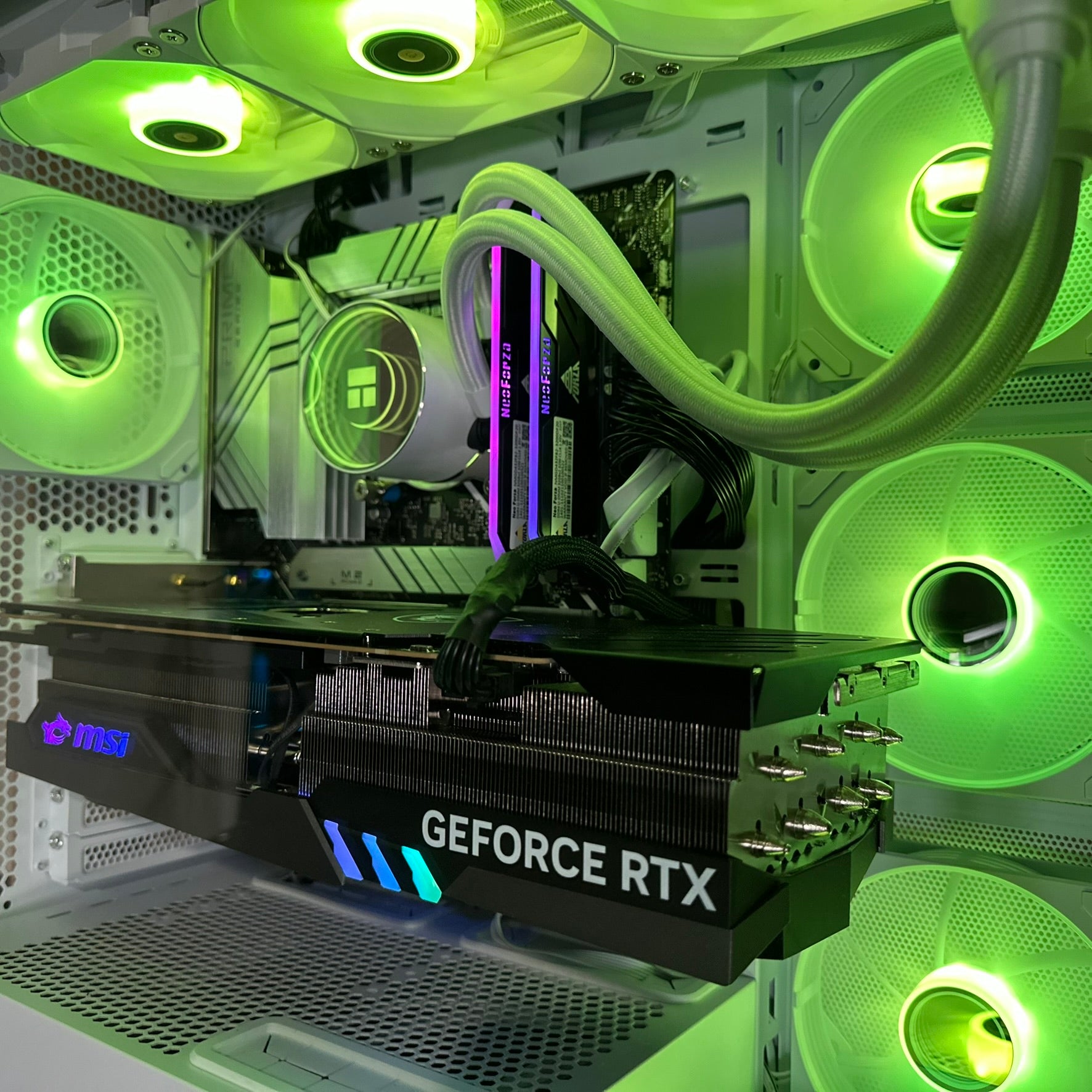
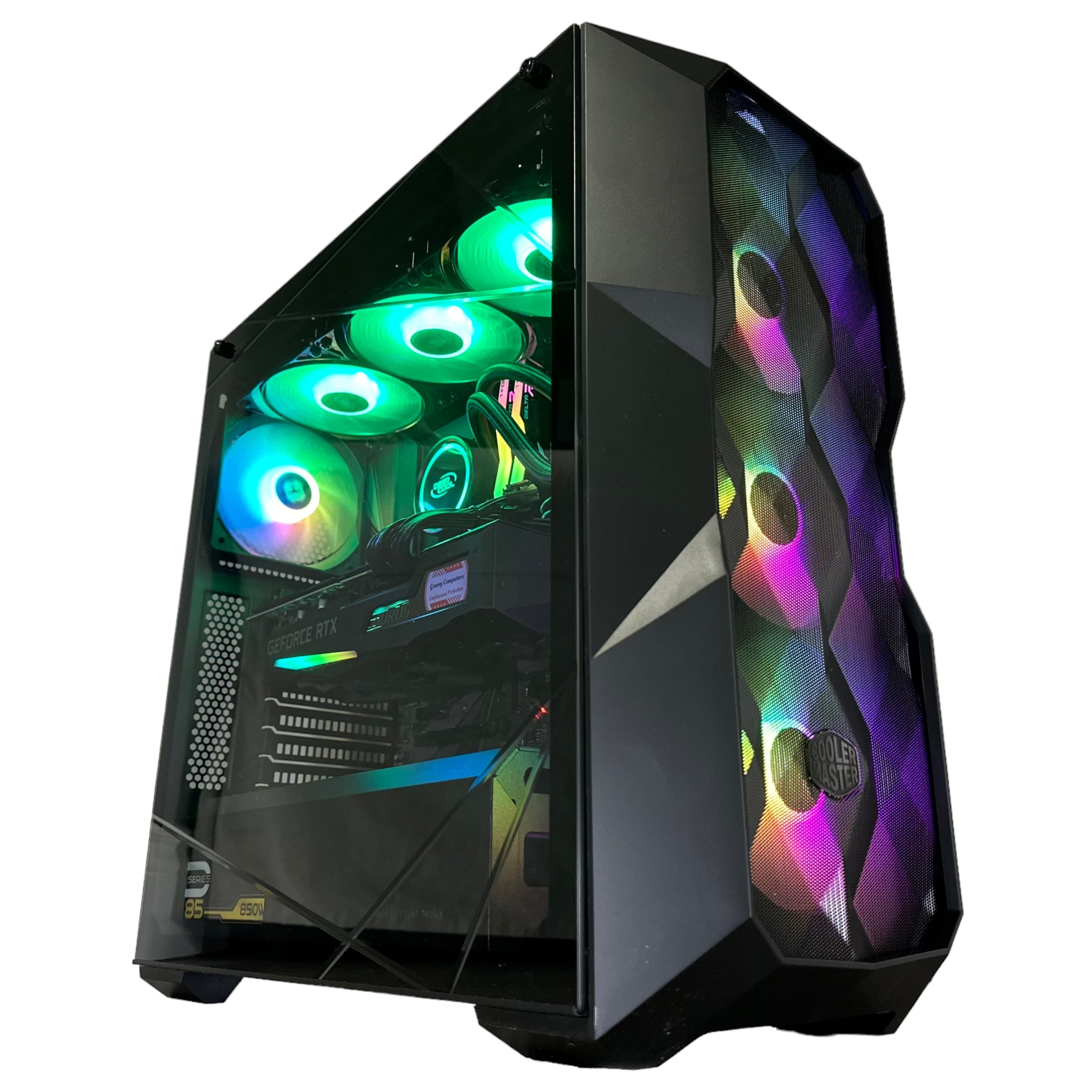
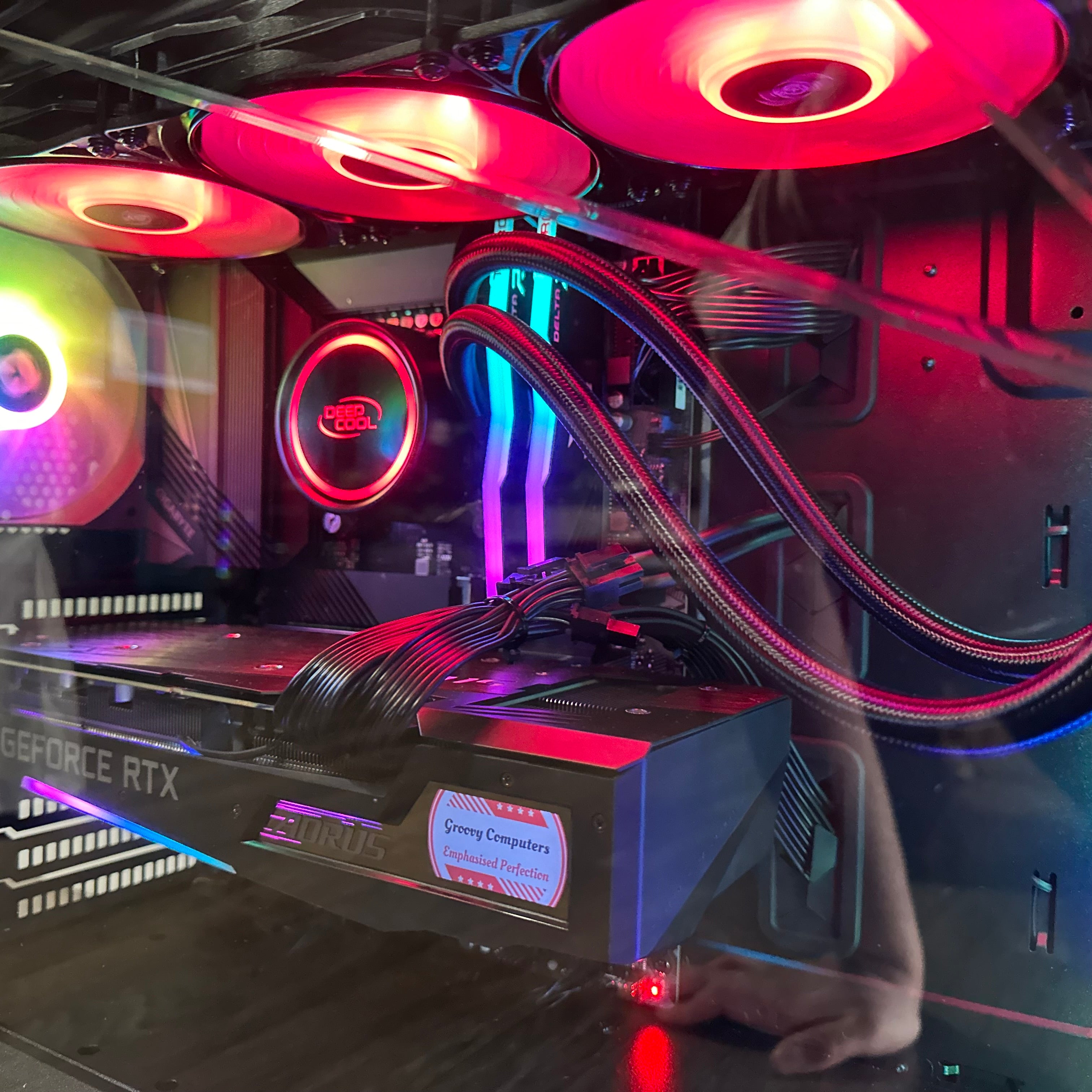
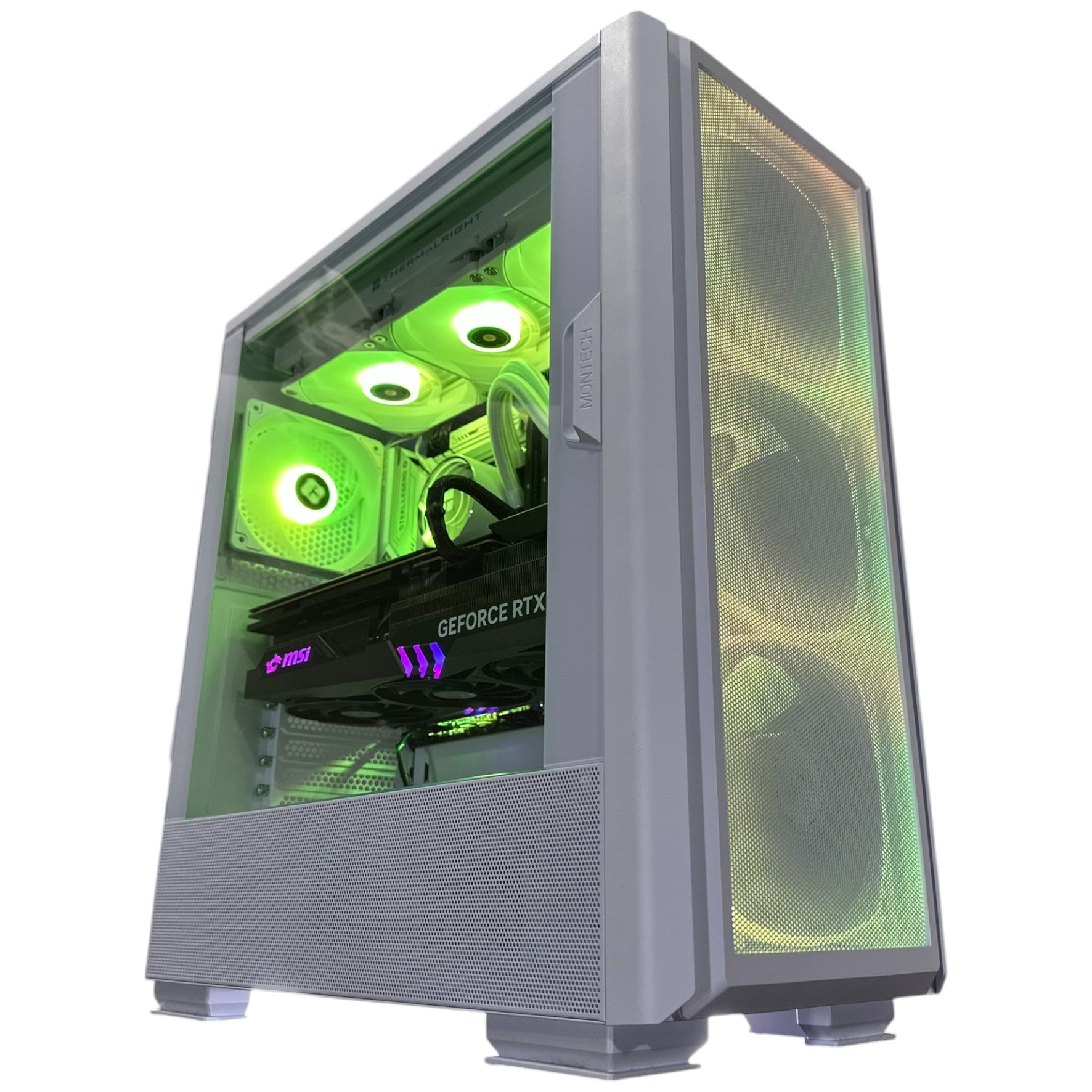
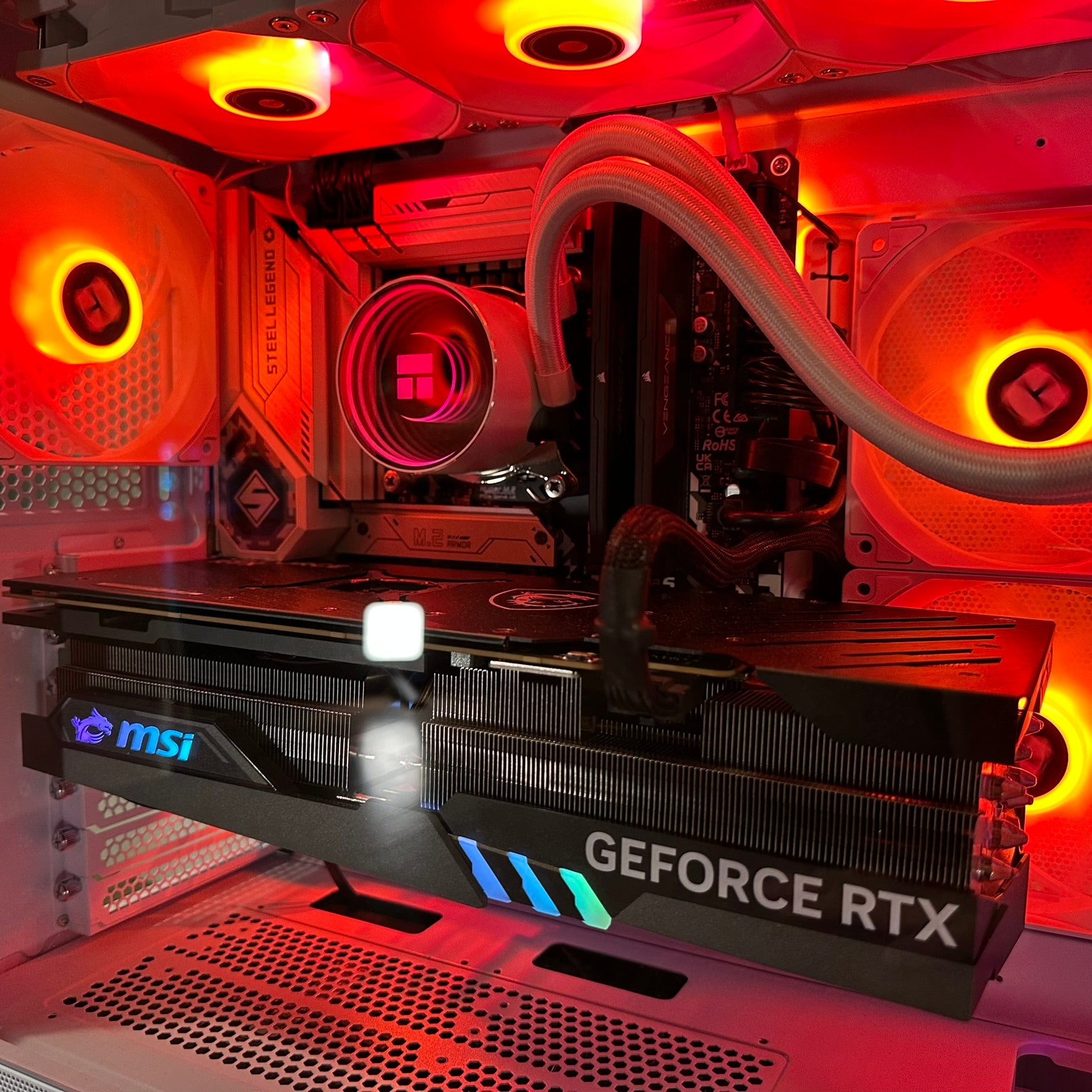
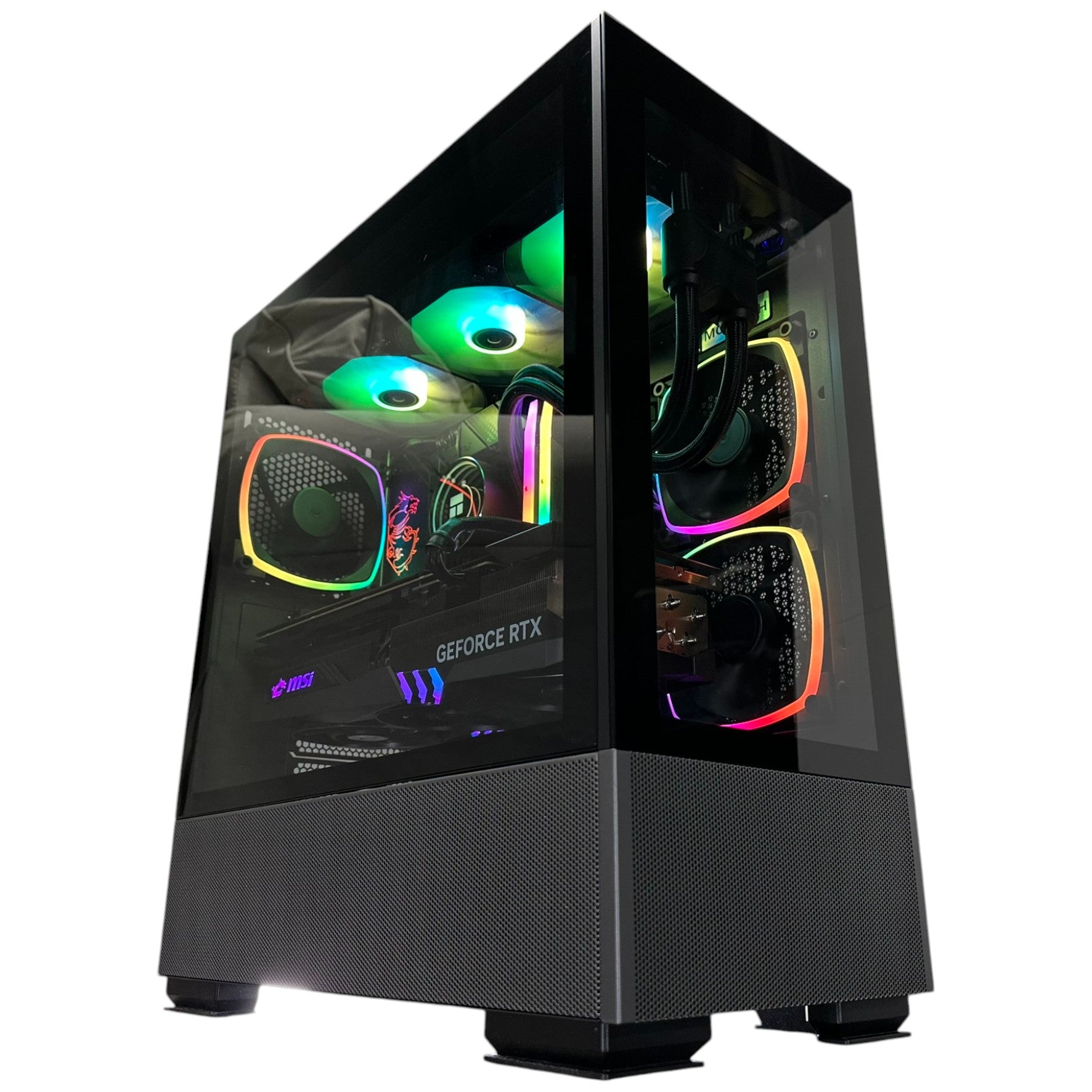
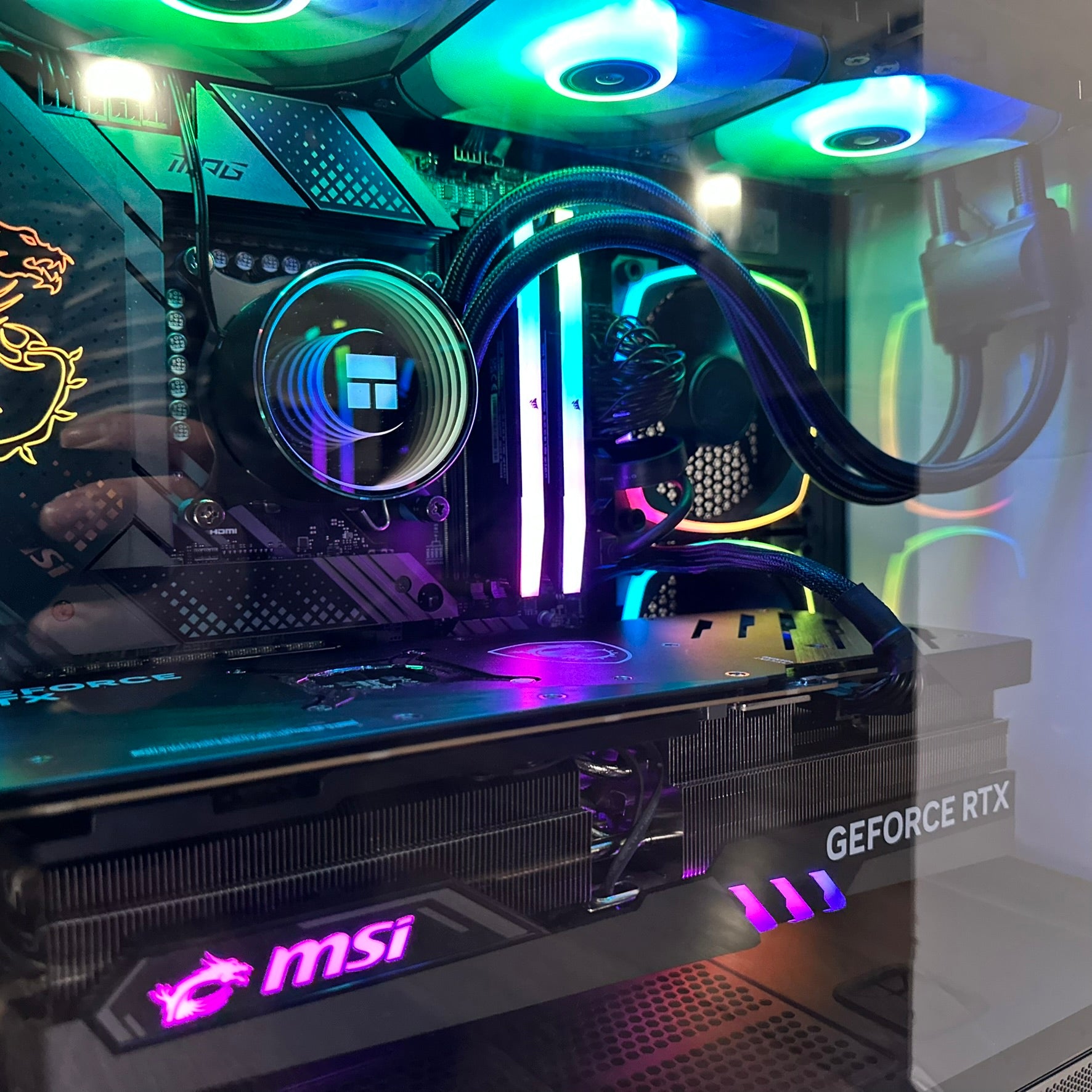
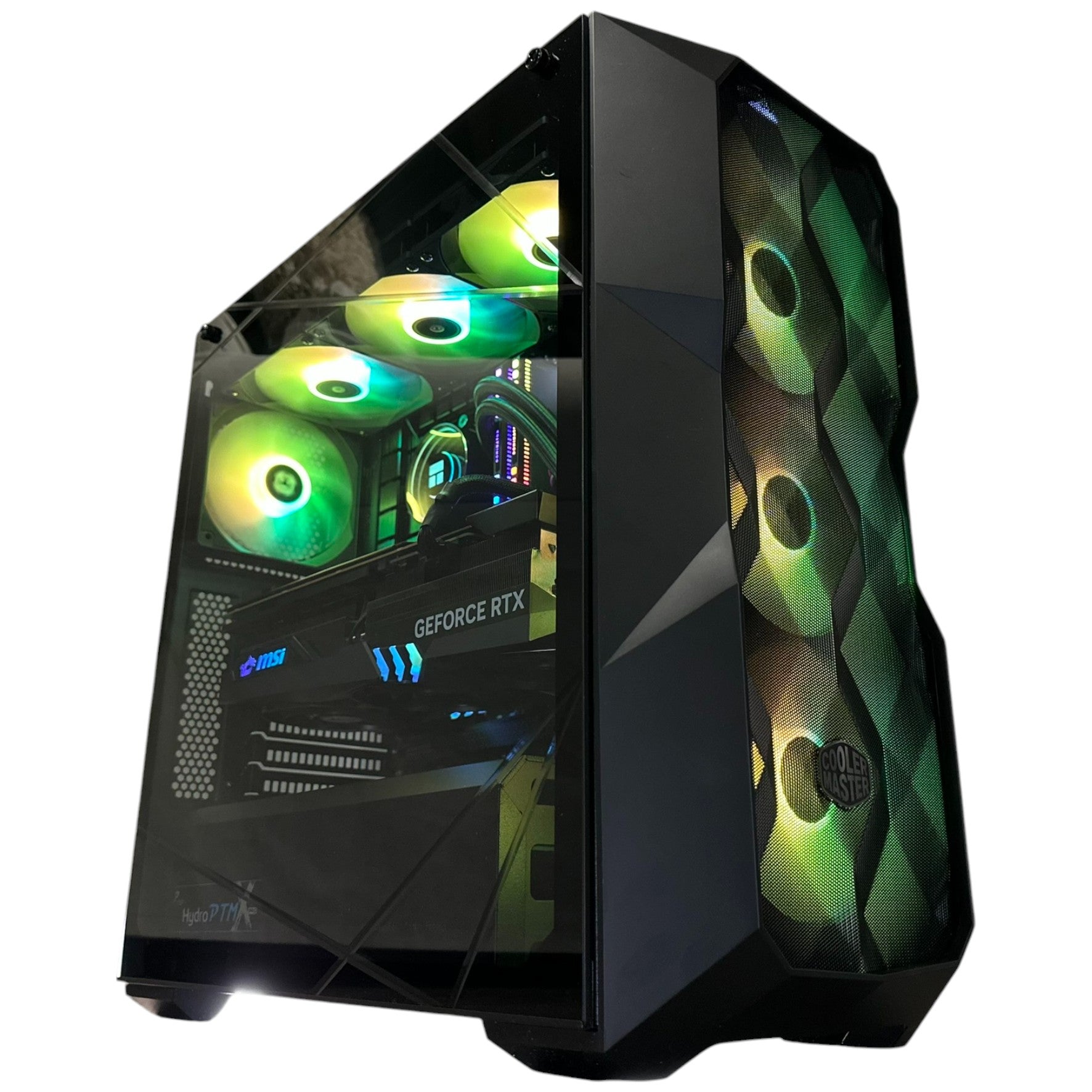
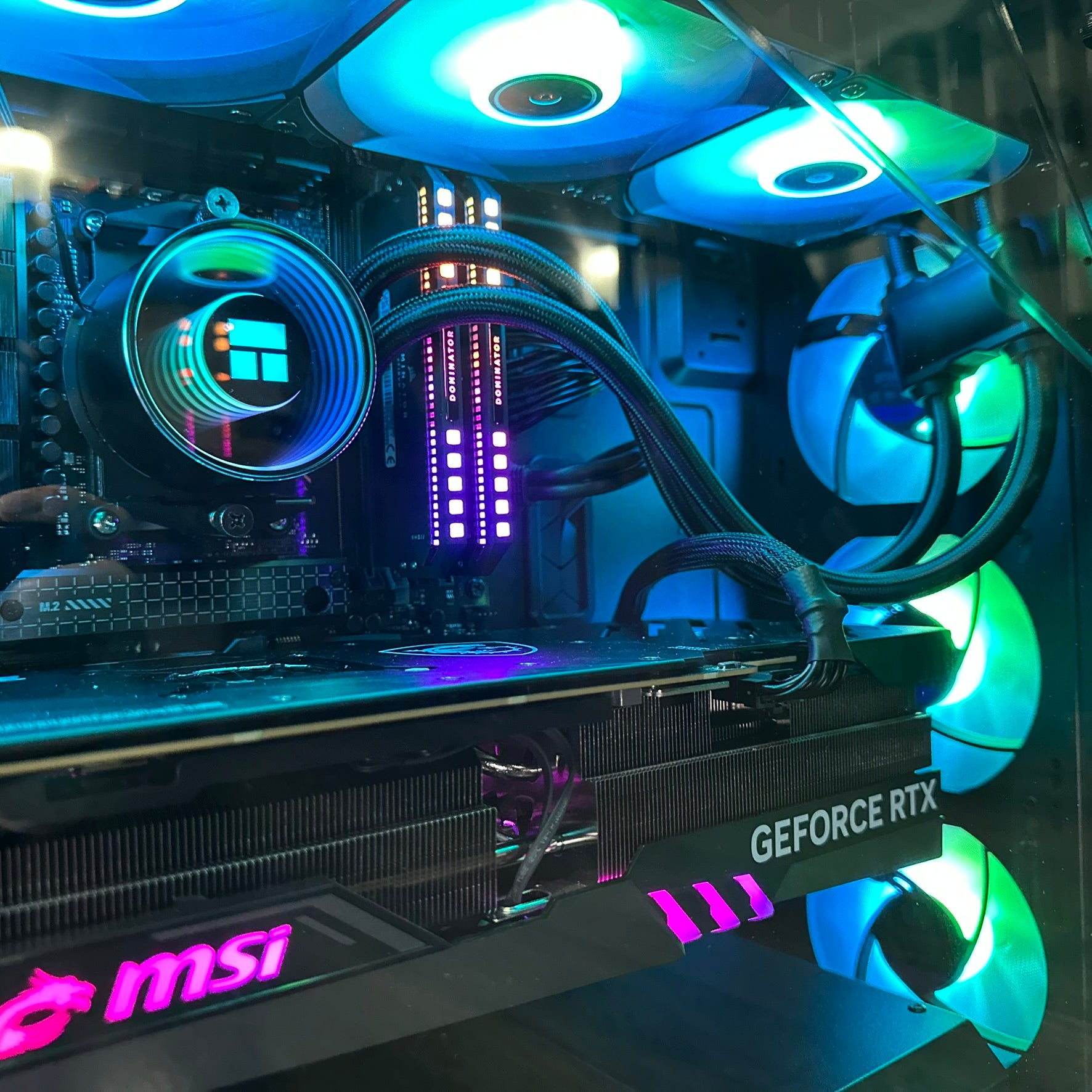
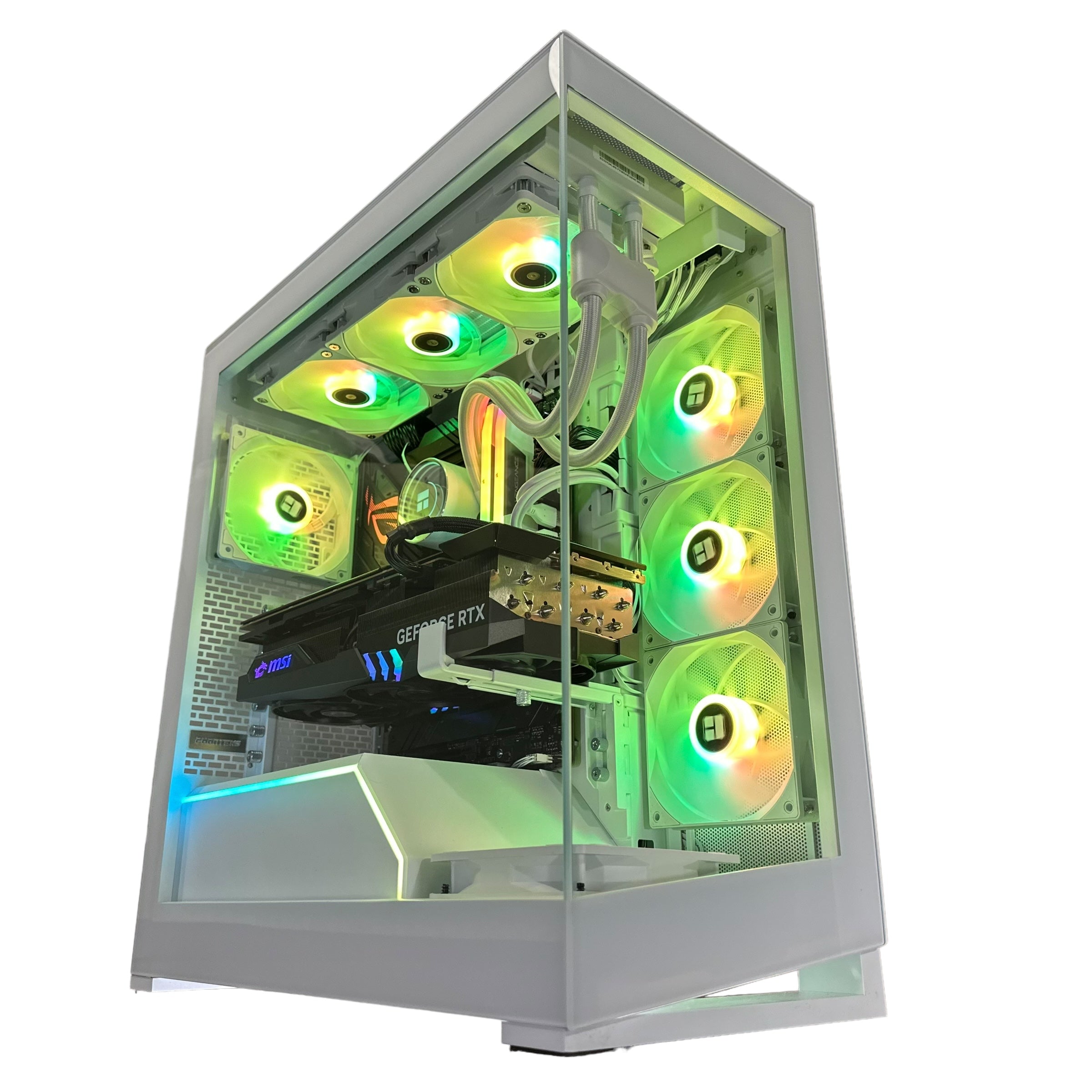
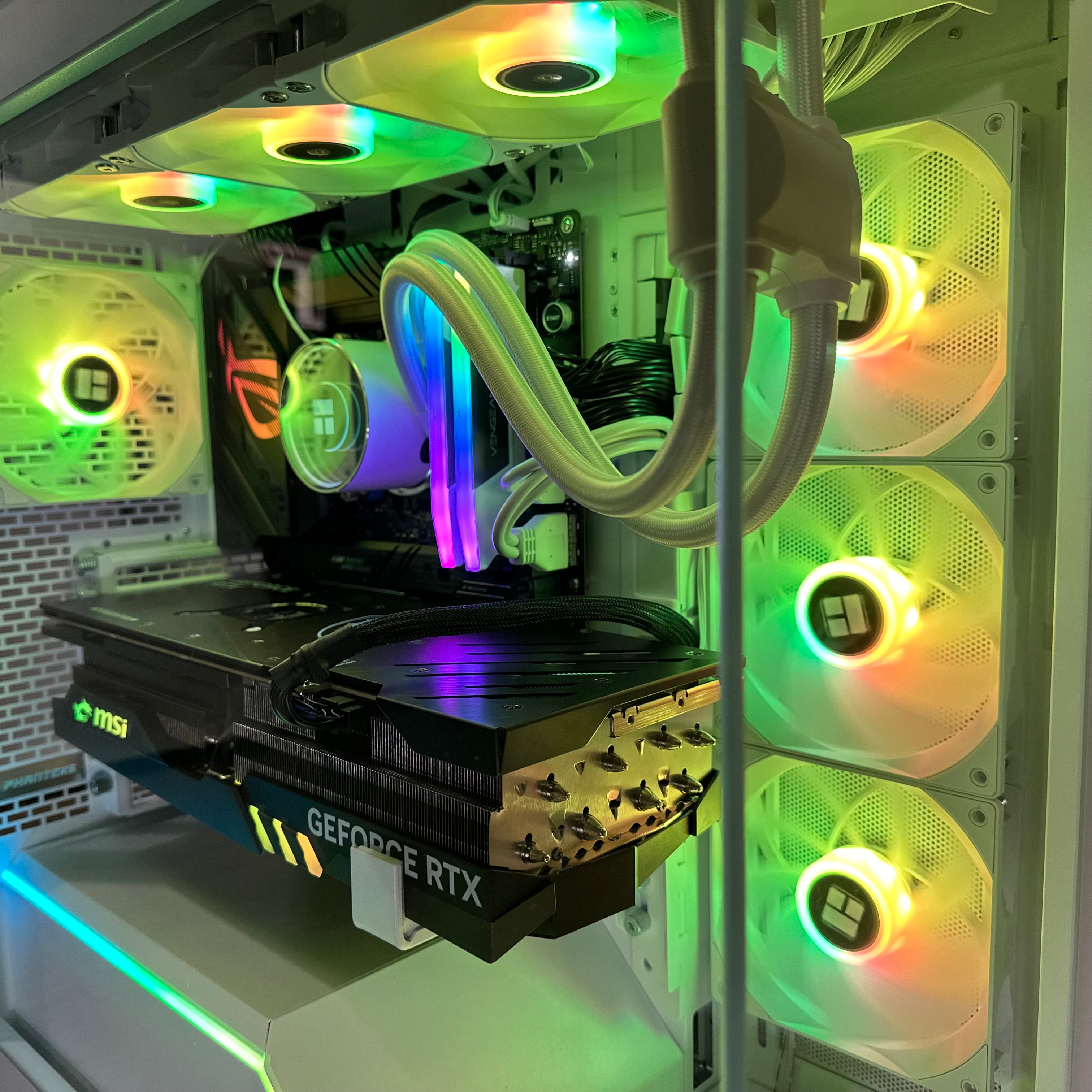
You know that feeling when you want to understand what's inside your PC but don't know where to start?
I've been there. Let me break it down in a way that actually makes sense.
Key Takeaway
- The CPU is your PC's brain – it processes instructions and runs programs
- The GPU handles graphics – it makes games and videos look smooth
- RAM serves as temporary memory – it lets you multitask without lag
- Storage (SSD or HDD) holds all your files – games and the operating system
- The motherboard connects everything – it acts as your PC's central hub
- The PSU powers all components – it converts wall power to usable electricity
- Cooling systems prevent overheating – they keep your PC running smoothly
Understanding What Makes a PC Work
A PC isn't just one piece of tech. It's a collection of parts that work together like a team.
Each component has a specific job. When they all work properly, you get a machine that can handle everything from browsing the web to playing the latest games.
According to recent market data, the gaming PC market alone was valued at $61.84 billion in 2024 and is expected to reach $129.93 billion by 2030. That's a lot of computers being built and sold.
Whether you're buying a pre-built PC or building your own, knowing what's inside helps you make smarter choices.
Let me walk you through each part.
The CPU: Your Computer's Brain
The CPU, or central processing unit, is where all the thinking happens.
It runs instructions from programs. When you click an icon, type a document, or load a game, the CPU processes those commands.
How CPUs Actually Work
Think of the CPU as a really fast calculator. It does billions of calculations per second.
Modern CPUs come from two main makers: AMD and Intel. According to Mercury Research, AMD reached a 32.2% market share in consumer desktop CPUs by Q2 2025, up 9.2% year-over-year.
The specs you'll see on CPUs include:
- Core count – More cores mean better multitasking. Most gaming PCs have 6 to 16 cores
- Clock speed – Measured in GHz, this tells you how fast the CPU processes information
- Cache – Fast memory built into the CPU that stores frequently used data
Choosing the Right CPU
For gaming, you don't always need the most expensive CPU.
AMD's Ryzen 7 7800X3D has become really popular with gamers because of its 3D V-Cache technology. This extra cache helps games run smoother at 1080p resolution. You can explore systems built with this processor in our AMD 3D V-Cache collection.
For content creation or video editing, you'll want more cores. The Ryzen 9 7900X with 12 cores or Intel's Core i9 with similar specs handle rendering and encoding much faster than lower-core-count processors.
The CPU also determines what motherboard you need. AMD's AM5 platform uses one socket type, while Intel's recent processors use LGA1700 or LGA1851.
The GPU: Making Graphics Look Amazing
The GPU, or graphics processing unit, is your dedicated graphics card.
While the CPU handles general computing, the GPU focuses on rendering images, videos, and games.
Why a Good GPU Matters
If you're gaming, the GPU is usually your most important component.
It has thousands of small cores working at the same time, which makes it perfect for the heavy work of creating 3D graphics.
According to benchmark tests, the difference between DDR5 and DDR4 memory shows average gaming frame rate improvements of 16% to 22% on modern processors. But the GPU often has an even bigger impact on gaming performance.
GPU Specs Explained
Here's what matters when looking at graphics cards:
- VRAM – Video RAM stores textures and graphics data. For 1080p gaming, 8GB works. For 1440p, aim for 12GB. For 4K, you'll want 16GB or more
- Ray tracing – Creates realistic lighting effects in games
- AI upscaling – Technologies like NVIDIA's DLSS or AMD's FSR boost frame rates while keeping image quality
The current GPU market is led by NVIDIA and AMD. NVIDIA's RTX 50 series launched in early 2025, with the flagship RTX 5090 priced at $1,999 (though it often sells for more due to demand).
AMD's RX 9000 series offers strong competition, with the RX 9070 XT at $549 providing great value for 1440p gaming.
Power and Size Considerations
Modern GPUs need a lot of power.
The RTX 5090 uses an average of 394 watts during gaming. You'll need a power supply rated for at least 850 watts for a system with this card.
Physical size matters too. High-end GPUs can be over 12 inches long and take up three expansion slots. Make sure your case has room before buying.
The Motherboard: Connecting Everything Together
The motherboard is like your PC's nervous system.
It's the main circuit board that connects all your components. The CPU plugs into it, RAM slots into it, and your GPU sits in its PCIe slot.
What the Motherboard Controls
Your motherboard determines:
- What CPU you can use – AMD and Intel use completely different sockets
- What RAM is compatible – Some boards support DDR4, newer ones require DDR5
- Storage options – How many M.2 slots and SATA ports you get
- Connectivity – USB ports, WiFi, Bluetooth, and networking
The chipset on your motherboard acts as a traffic controller. It manages data flow between your CPU, GPU, memory, and storage.
For AMD's AM5 platform, chipsets like X870E and X870 offer maximum features and PCIe 5.0 support. The B650 chipset costs less but provides fewer high-speed connections.
Motherboard Sizes
Motherboards come in different sizes:
- ATX – Standard size at about 12 x 9.6 inches, with the most expansion slots
- Micro-ATX – Smaller at 9.6 x 9.6 inches, still offers decent expansion
- Mini-ITX – Tiny at 6.7 x 6.7 inches, for compact builds with limited slots
Larger boards give you more room for multiple graphics cards, extra storage, and better cooling. Smaller boards fit in compact cases but limit your upgrade options.
Features That Matter
Look for these motherboard features:
- VRM quality – Better power delivery means more stable performance
- BIOS Flashback – Lets you update firmware without a CPU installed
- Built-in WiFi – Saves you from buying a separate card
- M.2 heatsinks – Keep your fast SSDs cool
RAM: Your PC's Short-Term Memory
RAM, or random access memory, is where your PC stores data it's actively using.
Unlike your hard drive or SSD, RAM is temporary. When you shut down your PC, RAM loses everything it was holding.
Why RAM Speed and Capacity Matter
More RAM lets you run more programs at once without slowdowns.
For basic tasks, 8GB is the minimum in 2025. For gaming, 16GB has become the standard. If you're streaming, video editing, or running lots of programs, 32GB gives you breathing room.
About 25% of new gaming systems now include 32GB of RAM, according to recent trends.
RAM speed also affects performance. Testing shows that DDR5 memory running at 6000 MT/s delivers 16% to 35% better gaming performance compared to DDR4-3200 in CPU-limited scenarios.
Games like Baldur's Gate 3 and Cyberpunk 2077 show clear frame rate improvements with faster memory.
DDR4 vs DDR5
DDR5 is the new standard for 2025 builds.
It starts at 4800 MT/s and can reach 8000 MT/s or higher. DDR4 typically maxed out around 3600 MHz.
The catch? DDR5 costs more. A 32GB DDR5-6000 kit runs about $120 to $150, while the same capacity in DDR4 costs $70 to $90.
If you're building on AMD's AM5 platform or Intel's latest processors, you have no choice – these platforms only support DDR5.
Installing RAM Properly
RAM installation is straightforward but has one critical rule: use the correct slots.
Most motherboards have four slots arranged in two pairs. For two RAM sticks, you need to install them in matching slots (usually A2 and B2) to enable dual-channel mode. This doubles your memory bandwidth.
Check your motherboard manual for the exact setup. Getting this wrong can prevent your PC from booting or cut your performance in half.
Storage: Where Everything Lives
Storage holds your operating system, programs, games, and files permanently.
Unlike RAM, storage keeps data even when the power is off.
SSD vs HDD
Solid-state drives (SSDs) have become the standard for primary storage.
They use flash memory with no moving parts, which makes them much faster compared to traditional hard disk drives (HDDs).
An NVMe SSD connected through PCIe 4.0 can read data at 5,000 to 7,000 MB/s. A hard drive manages only 150 to 250 MB/s.
That speed difference means:
- Windows boots in seconds instead of minutes
- Games load levels much faster
- Programs open almost instantly
HDDs still make sense for bulk storage where speed doesn't matter as much. You can get a 4TB hard drive for about $80, while a 4TB SSD costs $200 or more.
How Much Storage Do You Need?
Modern games are huge.
Call of Duty can take 200GB. Microsoft Flight Simulator is similar. A 500GB SSD fills up fast if you play multiple large games.
For 2025, I recommend:
- Minimum – 1TB SSD for your main drive
- Sweet spot – 2TB SSD for comfortable game storage
- For creators – Add a large HDD for video files and backups
Storage Interface Types
Storage connects to your motherboard in different ways:
- M.2 NVMe – Fastest option, plugs directly into the motherboard
- SATA SSD – Older but still fast enough for most tasks
- SATA HDD – Mechanical drives for cheap bulk storage
PCIe 5.0 SSDs can hit 14,000 MB/s read speeds, but they cost much more and make more heat. For gaming, PCIe 4.0 SSDs offer the best balance of performance and value.
The Power Supply: Feeding Your Components
The PSU, or power supply unit, converts the AC power from your wall outlet into the DC voltages your PC needs.
It's not glamorous, but it's critical.
Why the PSU Matters More Than You Think
A cheap PSU can damage your expensive components.
Quality power supplies provide clean, stable power and protect against surges. They also last longer and run more efficiently.
The 80 PLUS certification tells you how efficient a PSU is:
- 80 PLUS Bronze – 80-85% efficient
- 80 PLUS Gold – Around 90% efficient
- 80 PLUS Platinum – Over 90% efficient
- 80 PLUS Titanium – The most efficient, over 92%
For most builds, 80 PLUS Gold offers the best value. You'll save on electricity bills and make less waste heat.
Calculating Wattage Needs
Your PSU needs enough wattage to handle all your components.
The GPU and CPU use the most power. A mid-range system with an RTX 5060 Ti and Ryzen 5 processor needs about 650 watts. A high-end build with an RTX 5090 requires 850 to 1000 watts.
Online calculators from Seasonic, be quiet!, or Cooler Master help you estimate your needs. Add 20-30% headroom beyond the calculated requirement – this keeps your PSU running in its efficiency sweet spot.
Modular vs Non-Modular
Modular PSUs let you detach cables you don't need.
This makes cable management easier and improves airflow in your case. Semi-modular designs permanently attach essential cables like the motherboard power while making others removable.
Non-modular units have all cables permanently attached. They're cheaper but create more cable clutter.
New Power Connectors
Modern high-end GPUs use the 12VHPWR or 12V-2x6 connector.
This single cable can deliver up to 600 watts. Make sure it's fully seated when you connect it – partial insertion has caused overheating and melted connectors in some cases.
Cooling: Keeping Temperatures Under Control
Your PC makes heat. A lot of it.
Cooling systems prevent components from overheating, which can cause throttling, crashes, or permanent damage.
CPU Coolers
The CPU cooler is your most critical thermal component.
You have two main options:
Air coolers use metal heatsinks and fans. The Noctua NH-D15 G2 is currently the top air cooler, matching many liquid coolers in performance. At around $150, it's premium-priced but offers silent operation and no pump failure risk.
All-in-one (AIO) liquid coolers use a pump to move coolant through a radiator. The Arctic Liquid Freezer III Pro 360 leads performance rankings among 360mm AIOs and costs about $125.
AIOs can be quieter and often look sleeker, but they have pumps that can fail after 3 to 5 years. Air coolers last forever if you occasionally replace the fan.
Thermal Paste
Thermal paste fills tiny gaps between your CPU and cooler.
Without it, air pockets would severely limit heat transfer.
Most coolers come with thermal paste pre-applied or included. When applying your own, use the "pea-sized method" – put a small blob in the center of the CPU. Mounting pressure will spread it evenly.
Standard thermal compounds rate between 4 and 8.5 W/mK for thermal conductivity. Exotic liquid metal solutions hit 73 W/mK but require careful application.
You'll need to reapply thermal paste every few years as it dries out and loses effectiveness.
Case Airflow
Your case needs proper airflow to move heat out.
The best setup uses a "front-in, rear-out" pattern. Intake fans at the front draw cool air in. Exhaust fans at the rear and top push hot air out.
Creating slightly positive air pressure (more intake than exhaust) helps prevent dust buildup. Air enters only through filtered vents instead of every crack and gap.
Modern mesh-front cases like the Fractal Design Meshify series focus on airflow over looks. They can reduce temperatures by 10 to 15 degrees Celsius compared to cases with solid front panels.
Cases: Housing It All
The case holds everything together and provides structure.
It also affects cooling, build difficulty, and looks.
Case Sizes
Cases come in several standard sizes:
Mid-tower cases support ATX motherboards and measure about 17-20 inches tall. They're the most popular choice, offering room for most builds without taking up too much space.
Full-tower cases stand 22-24+ inches tall. They're for enthusiast builds with extensive water cooling, multiple GPUs, or just tons of storage.
Small form factor (SFF) cases house Mini-ITX builds in boxes as small as 8-12 inches tall. They save desk space but limit component choices and can be harder to build in.
According to Micro Center's sizing guide, mid-tower cases typically measure 17-20 inches in height, 7-8 inches in width, and 16-18 inches in depth.
Features to Look For
Good cases include:
- Tool-less installation – Makes building easier
- Cable management routing – Channels behind the motherboard tray
- Dust filters – On all intake fans
- Front panel USB-C – For modern devices
- GPU support bracket – Prevents sagging on heavy graphics cards
The Phanteks XT Pro shows modern case design. It has mesh construction for airflow, supports 360mm AIO radiators, and works with back-connecting motherboards for cleaner cable routing.
The RGB Question
RGB lighting has moved past its peak.
Many recent cases either skip RGB entirely or offer it as an optional upgrade. Industry trends show a shift toward cleaner, more simple designs.
Hyte's X50 case, announced at Computex 2025, features curved glass panels in six colors but no RGB lighting at all.
If you want RGB, that's totally fine. Just know it's becoming less of a default feature.
Putting It All Together
Once you have all your parts, assembly is surprisingly straightforward.
Before You Start
Set up on a clean, flat surface. An anti-static wrist strap is a good idea, though testing by Linus Tech Tips showed that static damage requires much more voltage than typical environments generate.
You'll need:
- Magnetic-tip Phillips screwdriver
- Zip ties or velcro straps for cables
- Your motherboard manual
Assembly Order
Start outside the case:
- Install the CPU into the motherboard socket. Line up the corner markings and lower it gently. Don't force it.
- Add RAM to the correct slots. Push firmly until the clips click.
- Install M.2 SSD if you have one. Remove any heatsink, insert the drive at an angle, then secure it.
- Mount the CPU cooler. Apply thermal paste if needed, then attach the cooler following its instructions.
- Do a test boot outside the case. Connect the PSU, bridge the power pins with a screwdriver, and verify the system reaches BIOS.
If the test boot works, move everything into the case:
- Install the PSU in its bay at the bottom
- Install the I/O shield in the case's rear panel
- Mount the motherboard on standoffs
- Connect front panel cables (power button, USB, audio)
- Install the GPU in the top PCIe x16 slot
- Connect all power cables from the PSU
- Install storage drives and connect their cables
BIOS Setup
When you first boot, enter BIOS (usually by pressing Delete or F2).
Check that all components are detected. Enable XMP or EXPO for your RAM to run at its rated speed. Set your M.2 drive as the first boot device.
Save settings and restart to install Windows.
Common Questions About PC Parts
Can I use parts from different brands together?
Yes, absolutely. You can mix AMD CPUs with NVIDIA GPUs, Corsair RAM with G.Skill fans, etc. The only compatibility requirements are physical (like CPU socket type) and electrical (like power connectors).
Do I need to buy thermal paste separately?
Most CPU coolers come with thermal paste either pre-applied or included in the box. You only need to buy it separately if you're reapplying paste to an old cooler or prefer a specific high-performance compound.
What's the difference between ATX and Mini-ITX motherboards?
ATX is the standard full-size format at 12 x 9.6 inches with the most expansion slots. Mini-ITX is compact at 6.7 x 6.7 inches but has fewer slots and usually only two RAM slots. ATX is easier to build with and offers more upgradability. Mini-ITX is for space-constrained builds.
How long do PC components typically last?
Quality components can last 5-10 years or more with proper care. SSDs and PSUs typically last 5-7 years. Motherboards and RAM can last even longer. The main reason to upgrade is usually wanting better performance, not component failure. AIO liquid coolers have shorter lifespans of 3-5 years due to pump wear and coolant breakdown.
Can I upgrade just one part, or do I need to replace everything?
You can often upgrade individual components. GPUs are the easiest to swap. Adding RAM or storage is simple. CPU upgrades depend on motherboard compatibility. If you're jumping several generations, you might need a new motherboard, which often means new RAM too. But many upgrades are possible without replacing everything.
Frequently Asked Questions
What is the most important part in a PC?
The CPU and GPU are both critical, but which matters more depends on your use case. For gaming, the GPU typically has the biggest impact on frame rates and visual quality. For productivity work like video editing or 3D rendering, a powerful CPU with many cores becomes more important. For general use, a balanced system matters more than any single component.
How much RAM do I need for gaming in 2025?
16GB is the standard for gaming in 2025 and handles most modern titles comfortably. However, 32GB is becoming increasingly popular, with about 25% of new gaming systems including this amount. The extra RAM helps if you stream, run Discord and browsers while gaming, or play particularly memory-heavy titles. 8GB is now considered the bare minimum and leaves little room for multitasking.
Should I get an SSD or HDD for storage?
Always use an SSD for your main drive where Windows and your most-played games live. SSDs are dramatically faster, with read speeds of 3,500 to 7,000 MB/s compared to HDDs at 150 to 250 MB/s. You can add an HDD for bulk storage of files, media, or less-frequently-played games where speed matters less. For most users, a 1TB to 2TB SSD provides the best balance of speed and capacity.
What power supply wattage do I need?
Calculate based on your GPU and CPU, which use the most power. A mid-range system with an RTX 5060 Ti needs about 650 watts. High-end builds with an RTX 5090 require 850 to 1000 watts. Use online PSU calculators from makers like Seasonic or be quiet!, then add 20-30% headroom. This keeps your PSU operating efficiently and allows for future upgrades without replacement.
Is liquid cooling better than air cooling?
Both work well for most builds. Top air coolers like the Noctua NH-D15 G2 match or beat many AIOs in cooling performance while running silently and lasting forever. AIOs can be quieter in some setups and fit better in compact cases. The Arctic Liquid Freezer III Pro 360 currently leads AIO performance. However, AIOs have pumps that can fail after 3 to 5 years. Choose based on your case constraints, noise preferences, and aesthetic goals.
Do I need a dedicated sound card?
No, modern motherboards have excellent built-in audio that's more than good enough for most users, including gamers. High-end motherboards feature premium audio setups with quality capacitors and amplification. You only benefit from a dedicated sound card or external DAC if you're using audiophile-grade headphones with high impedance or professional audio equipment. For typical gaming headsets, built-in audio works perfectly.
Can I build a PC without prior experience?
Yes, building a PC is easier than most people think. It's similar to adult Lego, with components that only fit together one way. Following a good video tutorial or written guide makes the process straightforward. The main skills needed are patience, attention to detail, and the ability to follow instructions. Thousands of first-time builders successfully put together PCs every year. Just take your time and don't force components that don't want to fit. If you prefer a pre-built option, check out our gaming PCs collection.
What's the difference between DDR4 and DDR5 RAM?
DDR5 is newer and faster, starting at 4800 MT/s while DDR4 typically maxes out at 3600 MHz. Testing shows DDR5 delivers 16% to 35% better gaming performance in CPU-limited scenarios. However, DDR5 costs significantly more – about $120-$150 for 32GB versus $70-$90 for DDR4. AMD's AM5 and Intel's latest platforms only support DDR5, so you have no choice on new builds. DDR4 remains viable for older platforms and budget builds.

Leave a comment
This site is protected by hCaptcha and the hCaptcha Privacy Policy and Terms of Service apply.